

Game/Chat Balance: How to Balance Discord Chat and Gameplay Audio for Streaming

Streaming a competitive match means running three conversations at once. The game talks to you in footsteps and gunfire. Your squad talks to you on Discord. You talk to your audience. When all three fight for the same space in your headphones, something gets buried. For it, game/chat balance gives you a physical way to shift priority in real time, without pausing, alt-tabbing, or digging through a volume mixer while you’re holding a site.
Where Your Audio Runs While Streaming
Before you touch a knob, know what’s actually playing and where it goes.
Game audio. Footsteps, gunshots, ability cues, reload sounds, ambient music. Not all of it earns the same attention. Positional detail wins rounds. The soundtrack doesn’t.
Discord chat. Callouts, rotations, the plan for the next round. It’s also the least predictable source in your setup, because you don’t control anyone else’s mic. One friend with a hot gain knob can bury a footstep you needed.
Your microphone. Your voice feeds two places at once: Discord, so your team hears you, and your streaming software, so your audience hears you. Your mic is an input. It doesn’t sit in the same lane as the audio you’re listening to.
Streaming software. OBS pulls in your desktop audio and your mic, then mixes them into the broadcast your viewers get.
| Source | You hear it through | Viewers hear it through |
|---|---|---|
| Game audio | Headphones | OBS desktop or application capture |
| Discord chat | Headphones | Only if you route it into OBS |
| Your voice | Mic monitoring | OBS mic input |
Turning chat down in your headphones doesn’t automatically turn it down for your audience. Whether it does depends on how you’ve routed audio into OBS, so test it before you rely on it mid-match.
Set Up Game/Chat Audio for Streaming
Hardware balance only works if your software feeds it correctly. A fifine AM6 or SC8 shows up on your computer as two separate playback devices, one for game and one for chat. Think of them as two lanes. Your job in setup is to put the right traffic in each lane, then set a baseline you can return to.
Set Up Chat Audio in Discord
- Open Discord and join the voice channel you’ll be playing in.
- Click the gear icon to open user settings, then go to Voice & Video.
- Set your output device to the chat lane, such as fifine Chat or SC8 Chat. This is the step that makes the knob work. Leave it on your default speakers, and Discord lands in the game lane with everything else.
- Set your input device to your microphone.
- Adjust input sensitivity, or switch to push-to-talk and assign a key. Push-to-talk keeps your keyboard and your sighing out of your team’s ears.
- Scroll to game overlay and turn on the in-game overlay. Set a hotkey, something like Shift plus period, so you can mute, unmute, and see who’s talking without leaving your game.
- Need one person louder or quieter? Right-click their name in the voice channel and drag their user volume slider. Fix individuals there, not with the main knob.
The reference point? Set a comfortable chat level with the balance knob centered. If chat is already too quiet at center, you’ll spend the whole match compensating.
Set Up Your Game Audio
- In your game’s audio settings, choose the game lane as the output device.
- Set master volume somewhere in the middle. Leaving headroom means you can push game audio up later without distortion.
- Turn sound effects up and music down. Menu music and combat themes eat the frequency range where footsteps live.
- Turn the game’s own voice chat down or off if your team is on Discord. Two chat sources in one headset is a mess no knob can fix.
- Load a practice range or a bot match and listen. Can you place a footstep left to right? Can you hear a reload behind you? That’s your baseline.
Key takeaway: A stable baseline means you adjust the level in the center position. After that, everything is a temporary adjustment. Want more details? Check out our guide on how to balance Game/Chat for Better Audio in Gaming.
How Game/Chat Balance Works While Streaming
Setting up your game and chat audio doesn’t mean everything is done. Now let’s check out how to balance the game and chat audio for a smooth and better streaming experience.
What is Game/Chat Balance?
When you plug in a mic or mixer with game/chat control, your computer sees two audio outputs instead of one. On the fifine AmpliGame AM6 mic, they appear as ”fifine Game“ and ”fifine Chat“. On the SC8 mixer, they show up in your Windows sound settings the same way, and Mac users get the same two devices. You send Discord to one, your game to the other, and the knob decides how loud each lane sits in your headphones.
The Game/Chat Balance isn’t the same as the volume. It changes the ratio between two lanes while your underlying levels stay put. Roll it to the game side and Discord fades back. Roll it to the chat side and the game drops away. Center it and you’re back to the mix you set up before you went live.
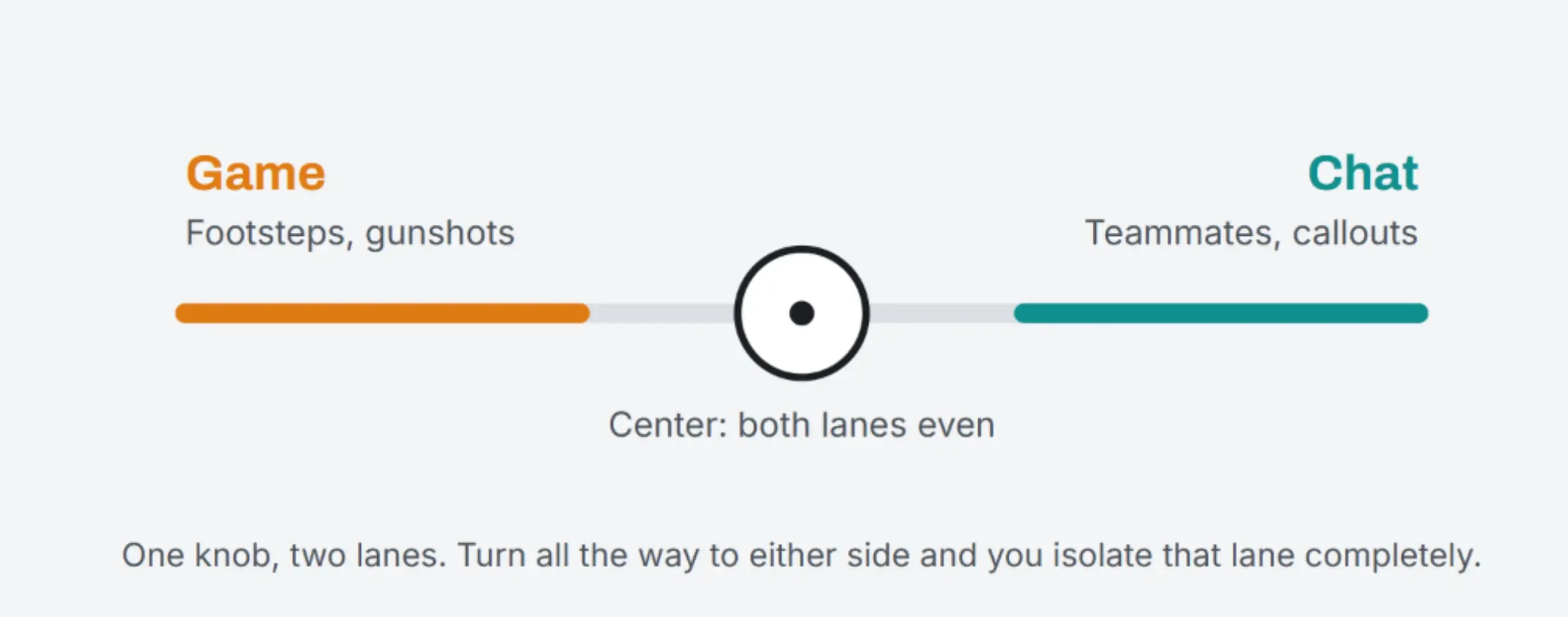
Note: Game/Chat Balance is changing how your headphone output sounds. It only affects what you hear, not what the audience hears.
When You Can Use Game/Chat Balance
The knob is for moments, not for permanent settings. A few that come up in almost every match:
- Clutching after a team wipe → roll to game. Spectator chatter is noise; footsteps aren’t.
- Dead and spectating → roll to chat. Nothing on screen needs your ears, and your commentary gets better.
- Buy phase or draft → roll to chat, agree on the plan, back to center before the round starts.
- Teammate’s mic blows out → roll away from chat for the round. Fix it after, not on stream.
The actual value: All of that happens with one hand without a single settings menu. You don’t break the flow of the match or the stream to fix your audio.
Game/Chat Balance vs. Your Stream Mix
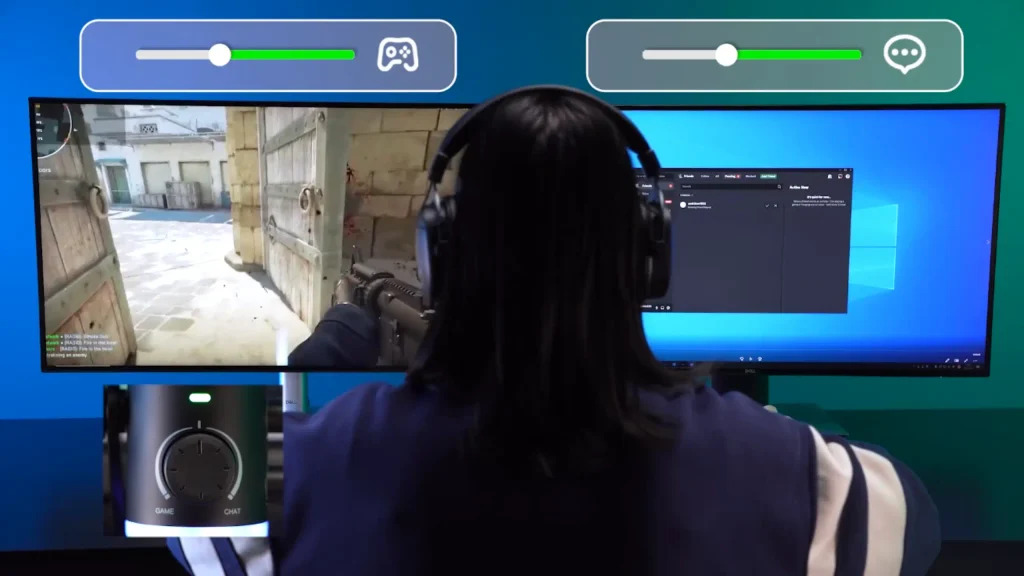
Your game/chat balance controls what lands in your headphones. Your streaming software controls what lands in your viewers’ headphones.
In most setups, OBS captures desktop audio, which usually means the game lane, plus your mic as a separate source, and mixes them. If your chat lane runs to a device OBS isn’t capturing, your viewers never hear your teammates at all, no matter where your knob sits.
Resolution: Test it Rather than Assume It
Before you go live, record 60 seconds locally in OBS with your team talking and the game running. Play it back and listen for three things: your voice, game audio, and Discord. Whatever’s missing or buried in that clip will be missing or buried on your stream.
Check both mixes regularly. Software updates reset default devices, Windows reassigns outputs after a reboot, and a new game may not respect the output you picked last month. A quick test will save you a VOD full of silent gameplay.
How fifine Gear Makes Game/Chat Balance Easier
Two fifine options put this control in your hands, and they suit different desks. Pick the SC8 audio mixer if you’re running more sources than a mic and a game. Pick the AM6 microphone if you want one object doing both jobs.
fifine AmpliGame AM6 Microphone
A USB-C condenser mic with the game/chat dial built into the body. Alongside it you get gain, a headphone jack with live monitoring, a mute button that lights the mic red and a pop filter. Plug it in and your computer sees “fifine Game” and “fifine Chat”, so you assign Discord to one and your game or full PC audio to the other.
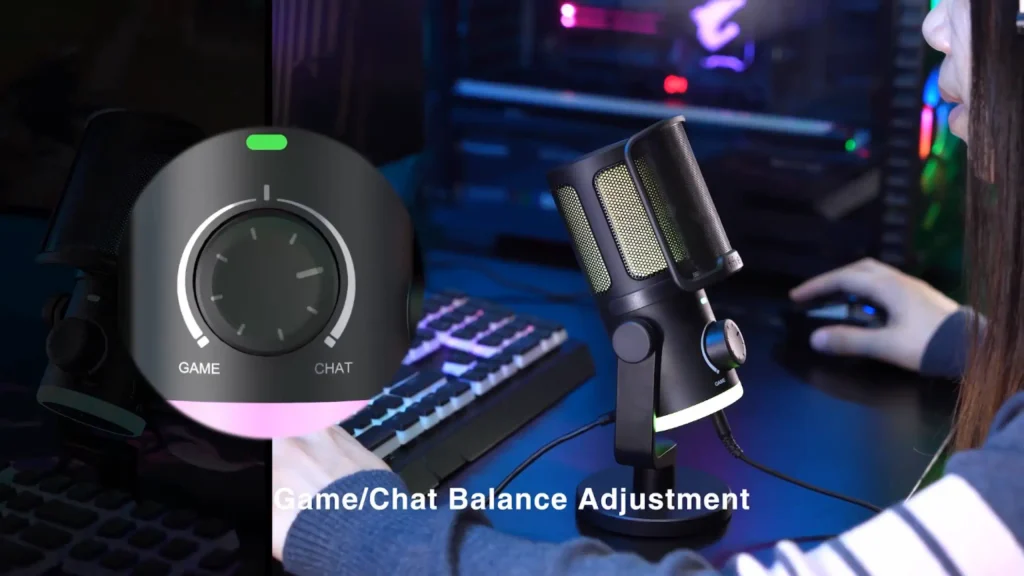
@Colesygaming described the fifine AM6 USB microphone: “it’s kind of like having a mixer, but without having to have a mixer”. The balance lives in the mic instead of a separate box on your desk.
If you can’t hear yourself from fifine AM6: Open your sound settings, find the chat playback device, and check that the microphone isn’t muted there. See fifine AM6 setup guide to learn more.
fifine SC8 gaming audio mixer
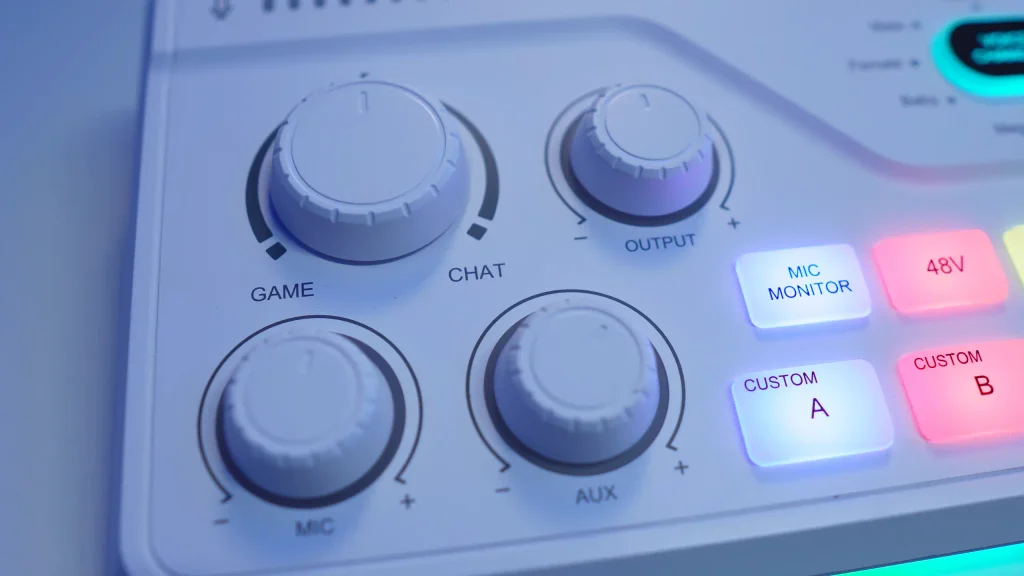
The fifine SC8 audio mixer puts the same idea on a desktop mixer with a dedicated game/chat control wheel. Plug it into your PC, and it creates two outputs in your Windows sound settings, and it works on Mac too.
Select the game output inside your game, select the chat output inside Discord, and the wheel gives you independent control over both. Keep it even, or hard pan to one side and isolate either your Discord call or your game entirely.
Example workflow during a live match:
Round start:
Center. Both lanes even, callouts and game audio share the space.
The push
Roll to game.
Footsteps and utility cues take over.
Round over
Roll to chat. Talk through what happened with your team and your audience.
Final Quick Streaming Audio Checklist
Run this before you hit Go Live.
- Microphone level. Speak at your normal in-game volume, not your setup voice. Watch for clipping when you get loud.
- Game volume. Master in the middle, effects up, music down.
- Discord volume. Comfortable with the knob centered, individual users balanced against each other.
- Headphone monitoring. You can hear yourself, with no delay and no mute hiding in your sound settings.
- OBS audio levels. Every source you expect is actually moving on the meters.
- Game/chat balance. Centered at the detent, and you know which way is which by feel.
- Test recording. 60 seconds, played back, all three sources present.
Wrapping Up
Good streaming audio starts in software. Pick the right output in Discord, give your game a clean baseline, and confirm OBS hears everything your viewers should. Once that’s stable, game/chat balance gives you the fast, physical control that software can’t: a half-second adjustment mid-round, made by feel, with nothing to undo afterward.
Our goal is hearing the right thing at the right moment, without any interruption. Explore game/chat balance in fifine AM6 microphone or SC8 audio mixer and hear the game and chat at the right ratio.
FAQ
Does game/chat balance change what my viewers hear?
Not by itself. The knob controls your headphone mix. What your audience hears depends on which sources OBS captures. Record a short test clip and listen back to confirm.
Does game/chat control work on Mac?
Yes. The two outputs show up on Mac as well as Windows. The device names and the setup steps in Discord and your game are the same.
Why can’t I hear myself through my headphones?
Check the chat playback device in your sound settings and make sure the microphone isn’t muted there. If your mic has a mute button, check that too.
Do I need both a microphone and a mixer?
Up to you. The fifine AM6 mic puts game/chat control in the mic itself, which covers a standard one-mic streaming setup. Move to the fifine SC8 gaming audio mixer when you’re managing more inputs.
Should I send all my PC audio to the game lane?
Everything except Discord goes to the game lane. Alerts, music and browser audio all move together when you roll the knob, which is usually what you want mid-match.
