
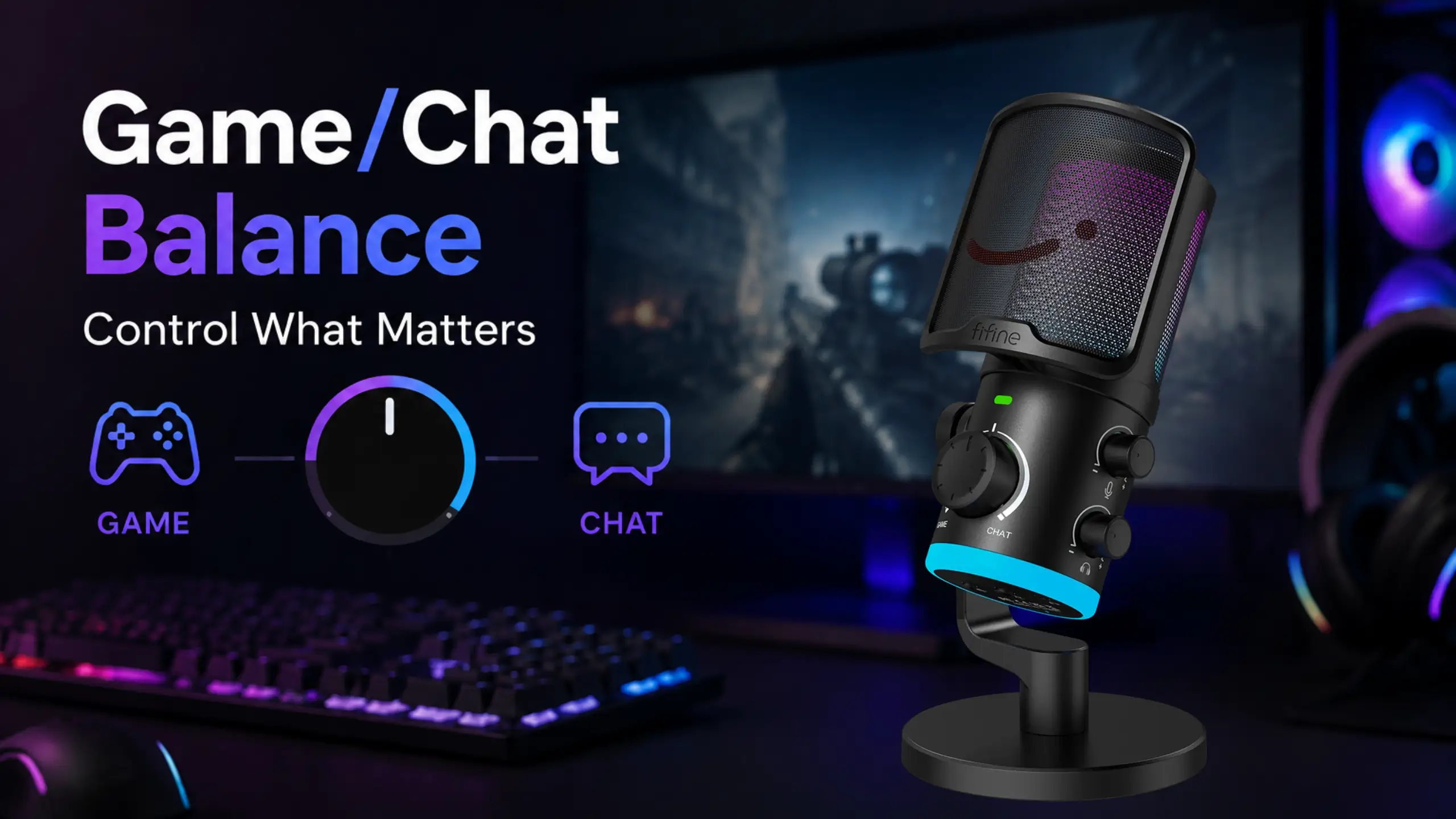
How to Use Game/Chat Balance for Better Audio in FPS Gaming

You’re the last alive on Haven. You need one clean piece of information: which door your enemies came through. Instead, you get your teammate’s microphone crackling with his complaint about his death.
That’s the problem ChatMix solves. It splits your headphone feed into two streams — game audio and voice chat — and lets you decide how loudly each one lands in your ears. That’s not a comfort feature for FPS players.
Many headsets like fifine H13 and microphones like fifine AM6 have a significant feature for Game/Chat balance. How does it work? Let’s dive into it.
What Is ChatMix?
ChatMix is a feature that lets you control the balance between two things:
- Game audio — footsteps, gunfire, ability cues, reloads, the ping of a grenade pin
- Voice chat audio — Discord, TeamSpeak, party chat, in-game comms
Your ears are good at tracking one sound source and mediocre at tracking two that overlap in frequency — and a human voice sits right on top of the midrange where footsteps and cloth movement live. So the keyword is balance. You’re changing the ratio between two feeds that are both playing at once and both competing for the same attention.
Traditional setups force you to fix that in advance. You set your Discord level once, set your game level once, and hope the ratio holds for every situation. It never does.
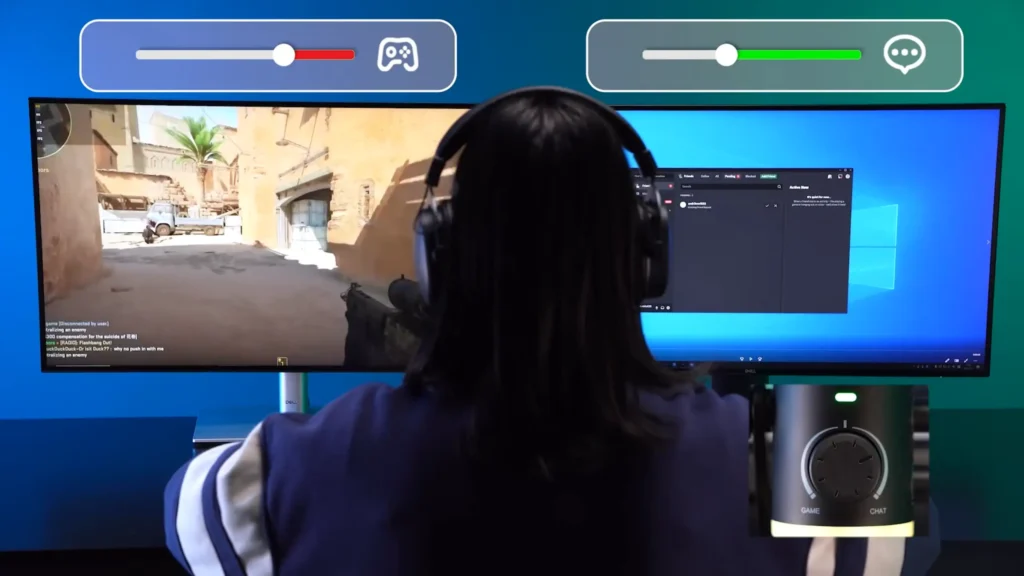
ChatMix-style controls change the ratio to a live variable. On PC, that usually works by presenting your system with two separate audio outputs, one for game, and one for chat. Whatever you send to each output is what the mix control moves.
Why FPS Gamers Need ChatMix or Game/Chat Balance
Shooters punish bad audio more than any other genre. Here’s where a game/chat balance earns its keep.
You want to hear footsteps clearly
Footsteps are quiet by design. They’re meant to be a reward for players who listen carefully, which means they sit low in the mix and disappear the moment anything louder shows up. A teammate breathing into a cheap mic will erase a step cue completely.
You need to coordinate with teammates
Other moments are the opposite. You’re setting up an execute, calling a trade, or asking someone to drop utility. Now the voices carry the important data, and you want them clear enough that nobody repeats themselves.
Picking a side, round by round
Most rounds have a clear answer, and it flips more often than you’d think.
When you’re holding an angle, tracking a rotation, or counting how many players are stacking a site, you should push the balance toward game. Between rounds, in the lobby, or while you’re dead and spectating, slide toward chat and talk to your friends.
ChatMix vs Traditional Volume Control
| Normal volume | ChatMix | |
|---|---|---|
| Control | Overall volume | Game/chat ratio |
| Adjustment | One source | Two sources |
| Use case | General listening | Gaming communication |
| Mid-round change | Everything gets quieter | One source steps back, the other steps up |
| Where you do it | Headset dial or system slider | A knob or app that splits the two feeds |
It seems that the difference is slight. In practice, it changes how you play.
Turning your headset volume down doesn’t resolve an audio conflict — it shrinks both sides of the conflict. The footsteps you were straining to hear get quieter along with the voice that was covering them, so the ratio between them stays the same.
App-by-app volume sliders are closer to a real fix, but they’re slow. Finding the window, dragging a slider, dropping Discord to 30% mid-round, then going back to your game. You need a compromise plan, with no doubt, which is a ChatMix-style control.
That’s how an AM6 mic or fifine H13 headset features. Move toward game and chat steps back automatically; move toward chat and the game recedes. One gesture, one hand, no menus.
How fifine AM6 Brings ChatMix-Style Control to Gaming
The fifine AmpliGame AM6 microphone delivers a game/chat balancing experience through its dedicated Game/Chat Balance knob — the large dial in the center of the mic body, and the feature the mic is built around.
Here’s what makes it work:
- Physical knob. It’s the biggest control on the microphone and sits at the front, so you can find it without looking. Turn toward game or toward chat.
- Instant adjustment. The change happens as you turn. There’s no confirmation step, no menu, and no window to bring into focus.
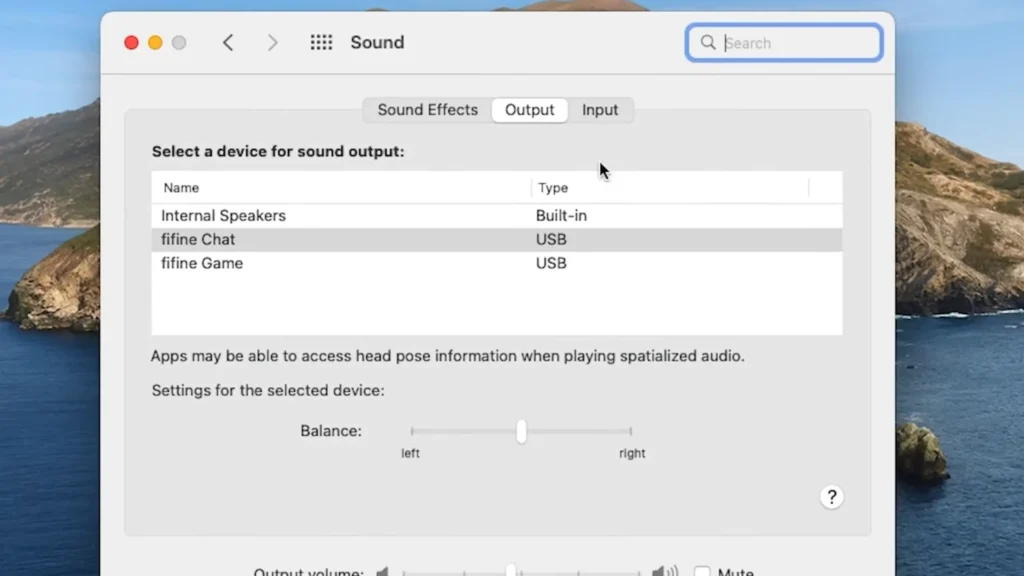
- No software switching. Plug the AM6 in, and your computer sees two separate audio outputs, FIFINE Game and FIFINE Chat. You point Discord or TeamSpeak at the chat output and your game or main PC audio at the game output, once. After that, the knob does the work.
- Designed for PC gaming. The two-output routing is a PC setup, and it sits alongside the rest of the AM6’s controls: separate mic and headphone volume dials, a touch-sensitive mute button with an indicator light on the front, a noise suppression toggle, and RGB lighting with adjustable brightness.
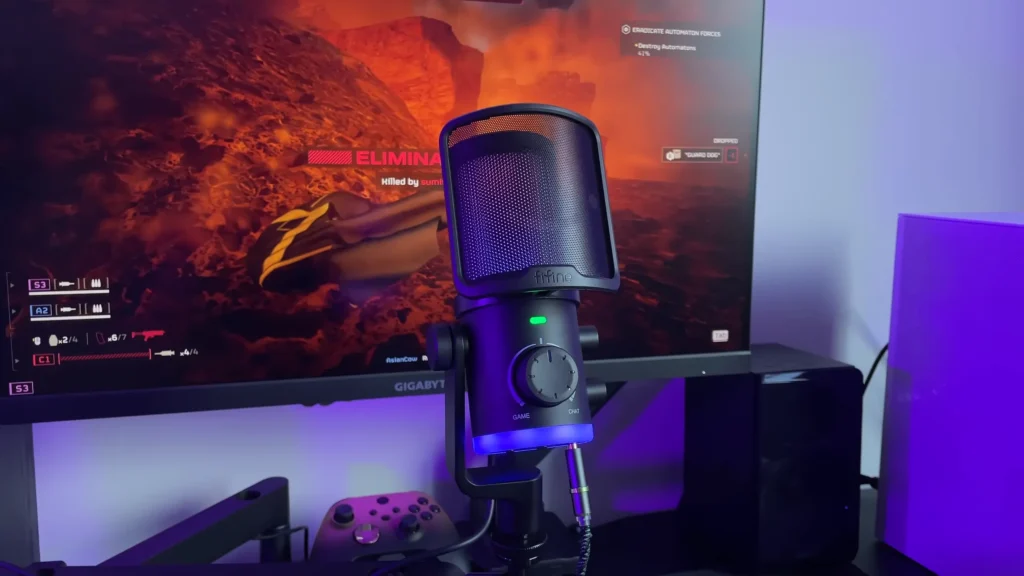
Physically, it’s a USB-C condenser mic with a pop filter and a desk stand with a swivel mount. Being a condenser, fifine AM6 picks up more of your room than a dynamic mic would, which buys you freedom to move while you play.
Two honest notes. The built-in noise suppression is aggressive — it clamps down hard on background noise, and some reviewers find it flattens their voice. And the mix knob balances what you hear in your headphones; it doesn’t change what your teammates hear from you.
How to Use AM6 Game/Chat Balance Knob in FPS Games
Set it up once, then treat the Game/Chat balance knob as part of your in-game routine.
- Plug the AM6 into your PC over USB-C.
- In your sound settings, confirm you see FIFINE Game and FIFINE Chat as two separate outputs.
- In Discord or TeamSpeak, set the output device to FIFINE Chat.
- Set your game (or your system default output) to FIFINE Game.
- Start the knob at center, then adjust from there.
Here’s how that plays out title by title.
PUBG
In this listening game, footsteps, vehicle announcements, and a door opening sound matter a lot. But it’s also a squad game with long stretches of looting where teammates are calling out drops, attachments, and rotations.
- Run the knob slightly toward Game as your default. When you’re clearing a compound or holding a room, push it further.
- During rotations and looting, bring it back toward Chat, so route planning actually lands.
- Late circles, when you’re prone in a field listening for the squad that’s also prone in that field, go heavy on Game.
Valorant
Valorant splits your attention between two very specific needs: enemy movement and tactical communication. The game rewards players who can tell a Jett dash from a Raze satchel by sound alone.
- In the buy phase and during setup, favor Chat.
- Once the round goes live, shift toward Game.
- If you’re last alive, go all the way to the Game side.
- Swing back after the round ends, and you’re back in the conversation.
Apex Legends
Apex moves fast, and fast decisions need clean inputs. Keep the mix closer to center than you would in a tactical shooter, because Apex genuinely needs both.
- Lean toward Game when you’re pushing a fight or listening for a third party
- Toward Chat when you’re repositioning, deciding on a ring rotation, or coordinating a res.
- Knocked and waiting on a pickup? Slide to Chat.
4 Tips to Optimize Your FPS Audio Setup
A balance knob works best on top of a setup that’s already sane. Four things to check.
1. Adjust your game volume first
In most shooters, that means turning master down and, if the game offers it, raising the effects or footsteps slider relative to music and cinematics. Kill the music track entirely in competitive modes.
2. Set your Discord volume sensibly
Use per-user volume in Discord to fix the one friend who sits too close to his mic. Then set your overall app output to a level that’s comfortable with the knob centered. That gives you usable range in both directions.
3. Use stereo and wear your headphones correctly
Directional audio depends on stereo separation, so make sure Windows and your game are set to stereo output. Check that left is on your left, as reversed cups are a common issue. If your game offers a headphone-specific audio preset, use it.
4. Test before ranked matches
Spend two minutes in a test before you queue up. Have a friend talk while you walk around, and find the knob positions that work for your ears: your game-heavy spot, your chat-heavy spot, and your neutral. Once you know roughly how far to turn, you’ll do it without thinking mid-round.
Balancing the Game and Chat Audio Now
Game audio and voice chat are competing for your attention, and in a shooter, attention is the resource that decides rounds. ChatMix-style controls let you decide which one wins, moment-to-moment, instead of settling on a single compromise ratio and hoping it fits every situation.
The fifine AM6 microphone makes the Game/Chat balance a one-second move. Route Discord to FIFINE Chat, route your game to FIFINE Game, and the knob in the middle of the mic handles the rest. Set it up once. Then start noticing how often you reach for it.
FAQs
Does ChatMix make my game or chat louder?
It changes the balance between them, not your overall volume. Turning toward game pulls chat back; turning toward chat pulls game back. Use your headphone volume control for overall loudness.
How does the fifine AM6 separate game and chat audio?
When you plug it in, your computer sees two audio outputs: fifine Game and fifine Chat. Send Discord or TeamSpeak to the chat output and your game or main PC audio to the game output. The knob then blends the two.
Do I need extra software to use the Game/Chat Balance knob in fifine AM6?
No. The routing happens through your normal sound settings, and the adjustment happens on the mic itself. The AM6’s printed instructions walk through the Discord setup specifically.
Where should I leave the knob by default?
Start centered, then bias slightly toward game for tactical shooters like Valorant and PUBG, and closer to center for faster squad games like Apex Legends. Adjust from there based on what you’re actually doing in the round.
Is a condenser mic like the fifine AM6 good for a noisy room?
A condenser mic like AM6 picks up more of the room than a dynamic mic does. Soft surfaces help — carpet, curtains, an open closet door. The built-in noise suppression is an option too, though it’s aggressive enough that you should A/B it with your own voice before leaving it on.
