
What Is EQ in Audio? A Beginner’s Guide to Better Sound

If you’ve ever chosen the Game mode in your gaming headset or picked a “Rock” preset in a music app, you’ve already used EQ. You just don’t know its name.
EQ, short for equalization, boosts or cuts specific frequencies in a sound to shape how it comes across. Microphones, headphones, mixers, streaming apps, and recording software all hand you some form of EQ. What is EQ for audio, and how does EQ actually work? Go through this guide, and you’ll know everything you want.
What Is EQ for Audio?
EQ (Equalization) is the process of adjusting specific frequencies to highlight or reduce certain qualities in a sound. Put even more plainly, an equalizer alters the volume of specific frequency ranges, and that really is the whole job.
It works because every sound you hear is a blend of frequencies rather than a single tone. Boost a range, and those frequencies grow louder and more present; cut a range, and they fall back. With all adjustments moved together, you’ll change the tonal balance of the sound.
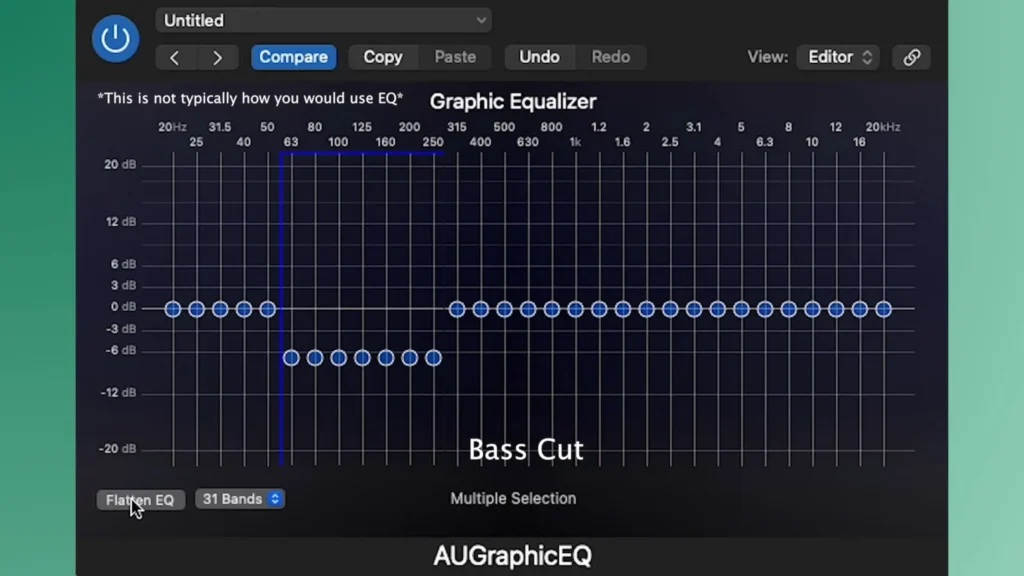
EQ is a tone control system. A bass-and-treble knob is EQ at its simplest, just with two slices to play with. A full equalizer works the same way; it only gives you many more control points across the spectrum, so you’re shaping ten or twenty slices of the sound.
That control is why EQ matters: your raw audio rarely sounds the way you want it to, because the room, the mic, and your own ears all leave their mark. A few well-placed moves close that gap — clearing the muddiness from a voice, cutting the low rumble of air conditioning, or tuning playback so every sound lands exactly the way you like.
How Does EQ Work?
Audio Frequencies Are the Basic
Frequencies are measured in hertz (Hz), and they map directly onto pitch. The musical note A, for instance, sits at 440 Hz, and human hearing runs from roughly 20 Hz to 20,000 Hz (20 kHz). That range is the canvas EQ paints on.
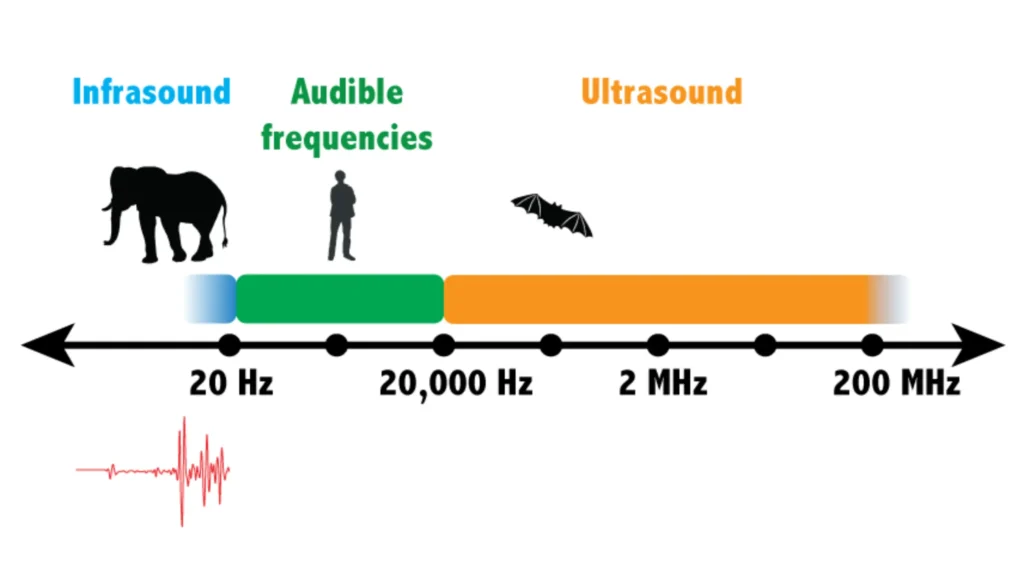
But no instrument or voice produces a single frequency. What you hear is the fundamental pitch plus its harmonics, along with whatever the room adds on top. So, sing one note and energy still spreads across the spectrum.
Because sound stacks up this way, you can adjust one slice of the spectrum and change the character of a sound. Each range carries its own feel, and once you know roughly where things live, EQ stops feeling like guesswork:
| Frequency Range | Common Characteristics |
|---|---|
| 20Hz–250Hz | Bass, warmth, punch |
| 250Hz–2kHz | Body, fullness, vocal fundamentals |
| 2kHz–6kHz | Clarity, presence, intelligibility |
| 6kHz–20kHz | Brightness, detail, air |
When a voice sounds boxy, you’ll learn to look in the low mids; when it sounds dull, you’ll reach for the highs instead of poking around at random.
Three Core Controls for Better EQ
From a simple plugin to a hardware mixer, almost every EQ shares the same three core controls:
- Frequency sets which range you’re targeting, anywhere from 20 Hz on the far left to 20 kHz on the far right.
- Gain sets how much you add or remove at that point, measured in decibels (dB). Gain up makes the frequency louder, down makes it quieter.
- Q (bandwidth) decides how wide or narrow that adjustment is: a low Q spreads the change across a broad swath of the spectrum, while a high Q tightens it to a sliver.
Those determine your EQ boost vs. cut:
- Boosting (sometimes called additive EQ) raises a frequency to bring it forward
- Cutting (subtractive EQ) lowers it to push it back or clear it out.
A habit worth picking up: learn to cut to make room rather than piling on boosts.
Two Types of EQ in Audio
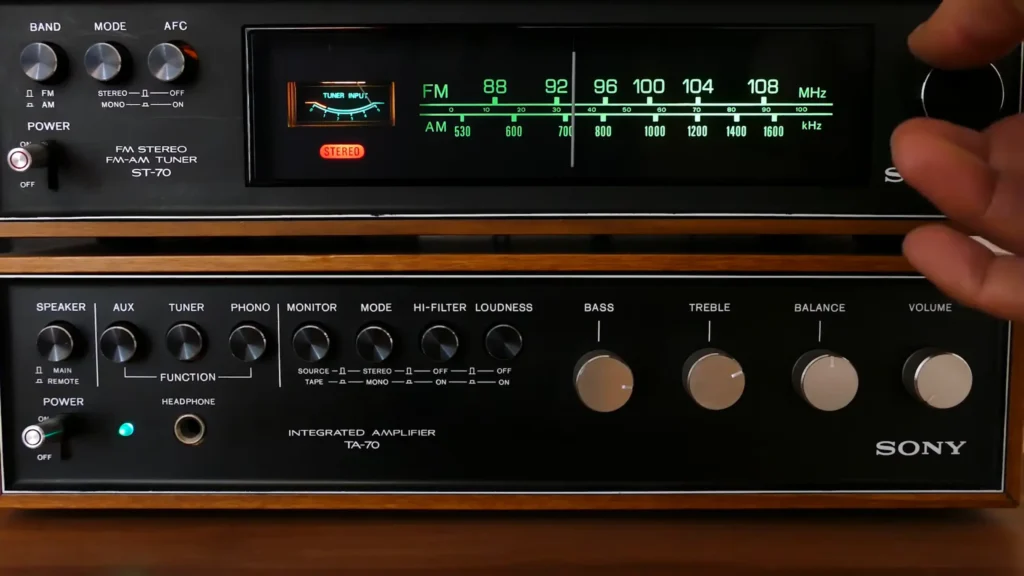
Graphic EQ
A graphic EQ gives you a row of fixed frequency bands, each with its own slider — push a slider up to boost that band, pull it down to cut it. Because the bands are chosen for you, there’s nothing to configure; you move sliders until it sounds right, which makes a graphic EQ a friendly place to start.
Where you can find it: Music players, audio software, and gaming applications.
Parametric EQ
A parametric EQ trades those fixed bands for full control, letting you choose the frequency point, set the gain, and dial in the Q so each adjustment is as wide or narrow as you need. It asks for a little more know-how, but the precision pays off the moment you have to target one exact spot.
Where you can find it: Professional audio software, streaming applications, and more advanced audio equipment.
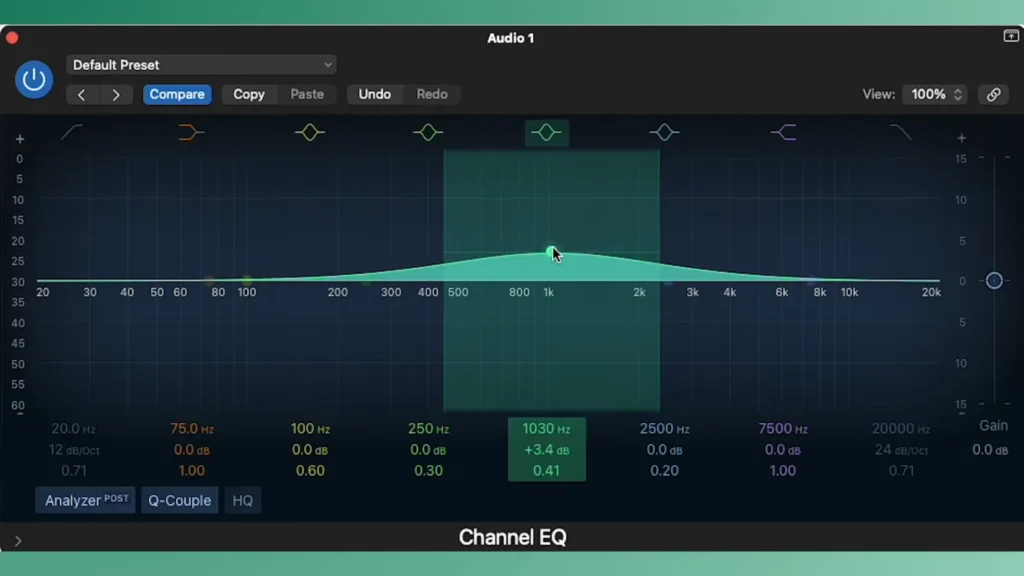
EQ Your Mic, Audio Mixer, and Headsets
EQ lives on a lot of modern gear, which makes shaping sound for any given task easier than it’s ever been. From hardware controls to software adjustment, FIFINE microphones, headsets, and audio mixers let you control the EQ in your hands.
EQ Your Audio Mixers
A mixer brings EQ and routing together in one piece of hardware, so you can shape your sound before it ever reaches your computer.
The FIFINE SC8 Audio Mixer is a good example: it’s a USB gaming mixer with 48V phantom power for XLR mics, three independent audio channels, Game/Chat balance, and programmable hotkeys, and it pairs with the FIFINE Genie software for deeper EQ work. You can rough things in on the hardware and fine-tune in the app.
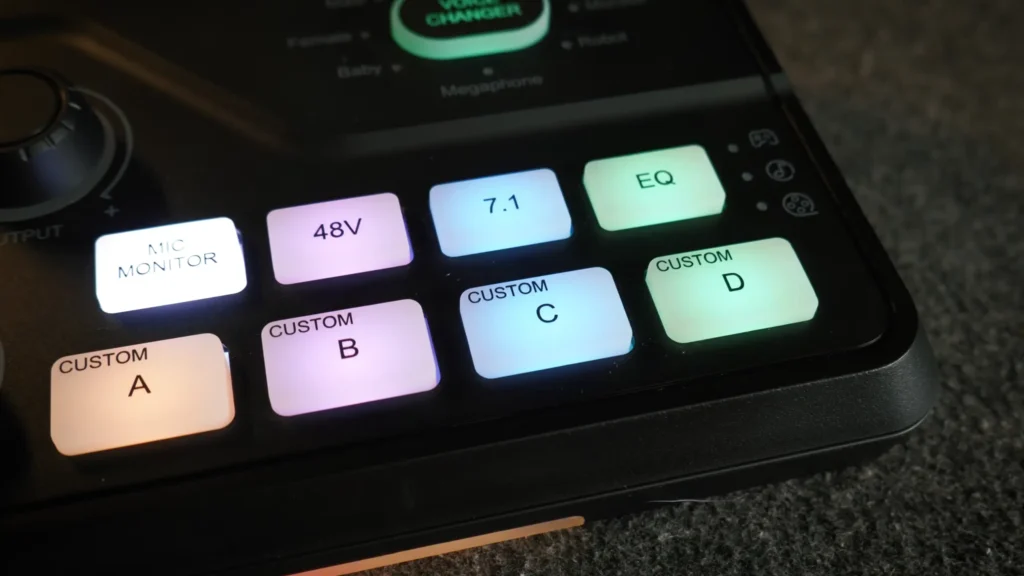
Pro Tip: FIFINE Genie software pulls EQ, audio mixing, and lighting into a single interface and offers specialized EQ modes plus customizable presets. FIFINE Genie runs on Windows 10 and later, and the hardware works with or without it, so the software is there for creative fine-tuning rather than something you’re forced to use.
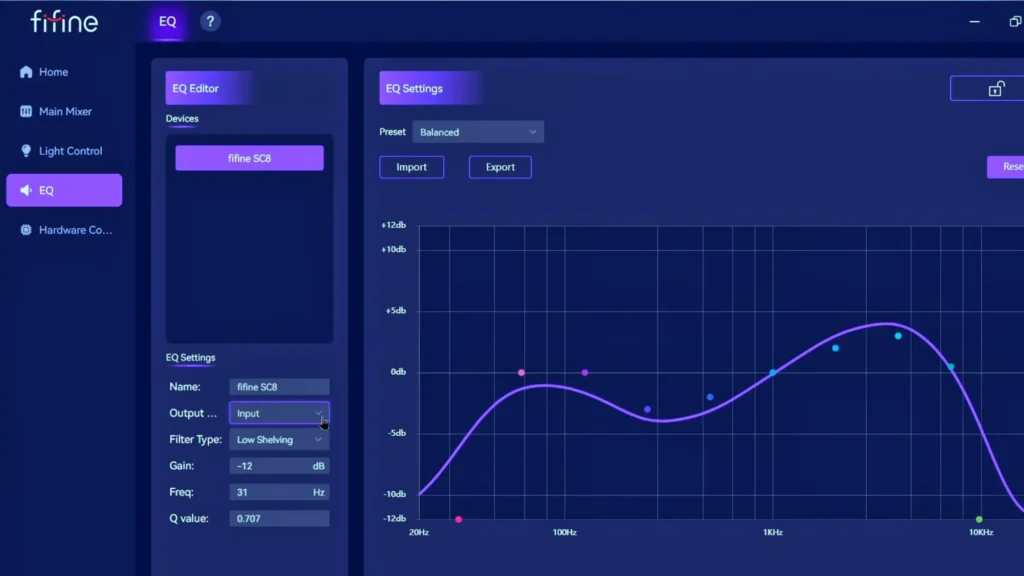
EQ Your Gaming Headsets
For gamers, EQ is more about hearing what matters, since lifting the right midrange and high frequencies makes footsteps and directional cues jump out.
In the FIFINE H13 gaming headset, you can change the EQ mode with the USB control box. With three EQ presets alongside music/ chat/movie balance, the H13 gaming headset helps you find the curve that gives you the clearest read on your game. Want to go deeper? Tweak further through the FIFINE Genie software.

EQ Your Microphones
Most of the EQ examples in this guide eventually come back to one place — your mic — so a versatile USB/XLR model gives you plenty to work with.
The FIFINE AM8 Microphone runs over both USB and XLR with a cardioid pickup pattern, RGB lighting, and onboard monitoring, and that dual connection is what opens up your EQ options.
Darkened Cyrus (@DarkenedCyrus) set the best EQ settings with AM8 for streaming in OBS.
- Reduce mid frequencies by approximately 3 dB to reduce boxiness.
- Boost low frequencies by about 3 dB to add warmth and depth.
- Boost high frequencies by around 3 dB to enhance clarity and presence.
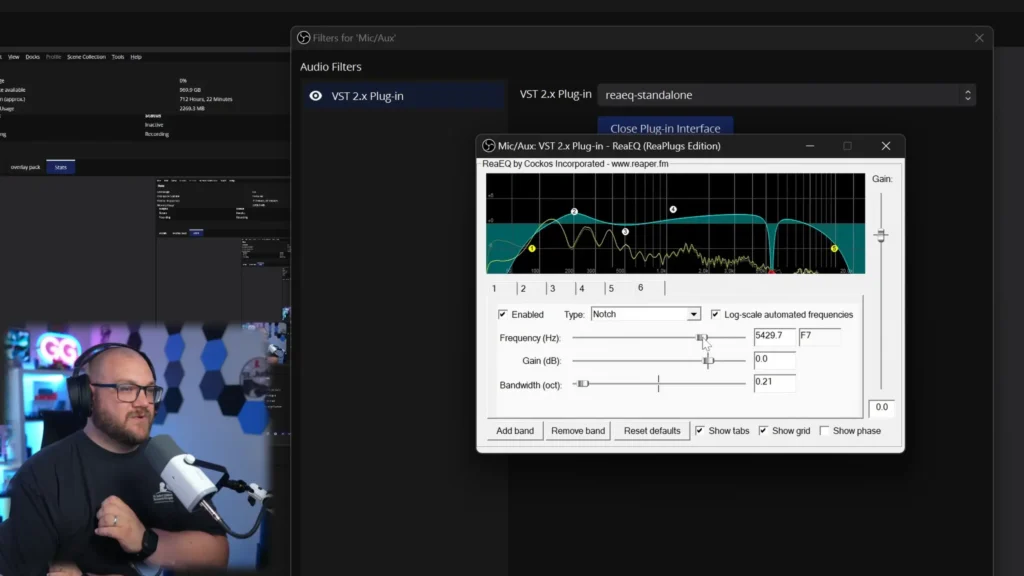
For finer control, install Reaper VST plugins and load the ReaEQ plugin in OBS:
- Apply a high-pass filter around 80-120 Hz to remove low-end rumble.
- Gently boost around 250 Hz with a wide bandwidth for added warmth.
- Cut around 500 Hz to reduce nasal tones.
- Use a high shelf above 1,000 Hz to increase vocal presence and brightness.
Hardware EQ vs. Software EQ
| Hardware EQ | Software EQ |
|---|---|
| Adjusted directly on the device | Adjusted through software |
| Fast and convenient | More precise control |
| Beginner-friendly | Advanced customization |
| Limited adjustment options | Multiple bands and presets |
The honest takeaway is that neither one wins outright. Hardware gets you a solid sound fast, software lets you get surgical, and most creators end up reaching for both depending on the moment.
How to EQ Your Audio If You’re New
Start With Small Adjustments
Big moves rarely sound natural, and most useful changes land within just a few decibels, so nudge a frequency a little and listen before you reach for more. It also helps to remember that boosting raises your overall volume as a side effect, which means heavy-handed lifts can quietly push you toward clipping if you’re not watching your levels.
Cut Before You Boost
When something sounds off, the better first instinct is to remove the offending frequency. A reliable way to find that frequency is to boost a narrow band and sweep it slowly across the spectrum until the problem leaps out — then go back and cut that exact spot. Just don’t leave the boost in place afterward.
Use Your Ears
You adjust to hear, since every voice, mic, and room is different. A good gut check is the shape of your EQ itself. If it ends up covered in dramatic boosts and cuts, that’s usually the sign you’ve gone too far, and nine times out of ten, less really is more.
Test in Real-World Scenarios
A curve that sounds perfect in solo monitoring can fall apart in the practical moment, so always check your EQ in the setting where you’ll actually use it. Toggling it on and off to compare against the untouched sound, especially because your ears adjust quickly and start to accept whatever they’ve been hearing.
Recommended EQ Settings for Different Uses
There’s no universal “best” EQ, so treat everything below as a starting point you’ll adjust to your own voice, gear, and goals.
Best EQ Settings for Streaming
The best setting for your streaming is to have clear, natural, and intelligible vocals:
| Frequency Range | Suggested Adjustment | Purpose |
|---|---|---|
| 100–200Hz | Slight Cut | Reduce muddiness |
| 2–4kHz | Moderate Boost | Improve vocal clarity |
| 6–8kHz | Slight Boost | Add brightness |
Best EQ Settings for Podcasting
A warm, professional-sounding voice is best for conventional recordings, such as podcasts, interviews, and meetings.
| Frequency Range | Suggested Adjustment | Purpose |
|---|---|---|
| 80–120Hz | Slight Boost | Add warmth |
| 200–400Hz | Slight Cut | Reduce boxiness |
| 3–5kHz | Moderate Boost | Improve speech clarity |
Best EQ Settings for Gaming
You can’t miss any hue in your competitive games, so your goal is to have a better positional awareness and communication
| Frequency Range | Suggested Adjustment | Purpose |
|---|---|---|
| 60–120Hz | Slight Cut | Prevent bass masking |
| 2–5kHz | Moderate Boost | Enhance footsteps and game cues |
| 6–8kHz | Slight Boost | Improve directional detail |
Best EQ Settings for Music
Music should be enjoyable and balanced, whether for pop, rock, or soft music.
| Frequency Range | Suggested Adjustment | Purpose |
|---|---|---|
| 60–100Hz | Slight Boost | Increase bass impact |
| 250–500Hz | Slight Cut | Reduce muddiness |
| 8–12kHz | Slight Boost | Add sparkle and detail |
Best EQ Settings for Movies and Videos
Make the dialogue clear and sound immersive, so you can dip into the movies and videos fully.
| Frequency Range | Suggested Adjustment | Purpose |
|---|---|---|
| 80–120Hz | Slight Boost | Add cinematic depth |
| 2–4kHz | Moderate Boost | Improve dialogue clarity |
| 8–10kHz | Slight Boost | Enhance ambience and detail |
Final Words on Audio EQ
So, what is EQ for audio? It’s one of the most effective tools you have for shaping audio, and it’s far more approachable than it first looks. Once you understand how frequencies stack up, improving a recording or a listening session really does come down to a few deliberate adjustments.
Better still, modern equipment, like FIFINE AM8 mic, H13 gaming headsets, SC8 audio mixer, and control software like FIFINE Genie, has put EQ within reach of anyone willing to trust their ears. Start small, cut before you boost, and test in the real world. A handful of simple moves will get you to a clearer and more balanced sound.
FAQ
What does EQ stand for?
EQ is short for equalization — the process of adjusting the volume of specific frequencies in a sound.
Is boosting or cutting better?
Both have a place, but cutting unwanted frequencies is often the cleaner fix, since it removes problems instead of layering more sound on top and keeps your overall level under control.
How many decibels should I adjust?
Start small. Most natural-sounding moves stay within a few decibels, and large cuts or boosts tend to do more harm than good.
Do I need software, or is hardware EQ enough?
Hardware EQ on a mixer or headset is plenty for fast, solid results, while software like FIFINE Genie software adds multi-band precision and saved profiles for when you want more control.
Why does my voice sound boxy?
That hollow, boxy quality usually lives in the low mids, often somewhere around 200–500 Hz, so a gentle cut in that region tends to open the sound right up.
