
Streamlabs vs OBS Streaming Software: Ease of Use vs Full Control

If you’ve spent any time researching streaming software, you’ve seen these two names everywhere — and probably walked away more confused than when you started. The confusion makes sense: Streamlabs Desktop is literally built on OBS Studio’s open-source code. They share the same DNA.
So Streamlabs vs OBS, which one do you pick? As they serve different types of users, this article will break down both streaming software across the dimensions that matter: setup, performance, customization, cost, and growth.
Quick Check Streamlabs vs OBS
| Dimension | Streamlabs Desktop | OBS Studio |
|---|---|---|
| Price | Free tier + Ultra (~$20/mo or $150/yr) | Completely free, open source |
| Ease of Use | Guided setup, built-in overlays and themes | Steeper learning curve, manual configuration |
| Performance | Slightly higher RAM usage due to extra UI | Lighter footprint with minimal setup |
| Customization | Limited to built-in features and marketplace | Extensive plugin ecosystem, scripting, custom code |
| Multistreaming | Built-in (Ultra subscription required) | Free via third-party RTMP plugins |
| Updates | Delayed (adapts OBS updates into its own build) | Faster, direct from open-source contributors |
| Plugin Support | Restricted; no outside plugins | Massive community-driven plugin library |
| Recording | Built-in video editor and recording manager | Lightweight recording, no built-in editor |
Streamlabs Desktop
Streamlabs Desktop (formerly Streamlabs OBS) is a streaming application built on the OBS Studio codebase, now owned by Logitech. The core pitch: everything you need in one place. Alerts, overlays, widgets, themes, a chatbot, merch store integration, a charity campaign manager, and a basic video editor — all accessible without leaving the app.
Key Features
- One-click scene collections: Browse the marketplace, install a theme, and you’ve got a stream layout ready to go.
- Built-in alert and widget editor: Adjust donation alerts, follower notifications, and event lists without leaving the app.
- Multistreaming: Broadcast to Twitch, YouTube, and other platforms simultaneously (requires Ultra subscription).
- Dual output: Run horizontal and vertical streams simultaneously for multi-platform coverage.
- Built-in recording and editing: Manage recordings and make quick edits right inside the app.
OBS Studio
OBS Studio is a free, open-source broadcasting and recording application maintained by a global community of developers. No paywalls, no subscriptions, no marketplace. It’s a blank canvas — you build everything yourself.
Key Features
- Open-source plugin ecosystem: Hundreds of community-built plugins for advanced audio routing, interactive overlays, scene transitions, and more.
- Lightweight core: Only loads what you install, keeping resource usage minimal.
- Scripting support: Write custom scripts in Python or Lua for automation and bespoke effects.
- Faster updates: New features and fixes ship directly from the community without an intermediary.
- Free multistreaming: Use third-party RTMP plugins to broadcast to multiple platforms at no cost.
Streamlabs vs OBS: Key Differences
Setup and Usability
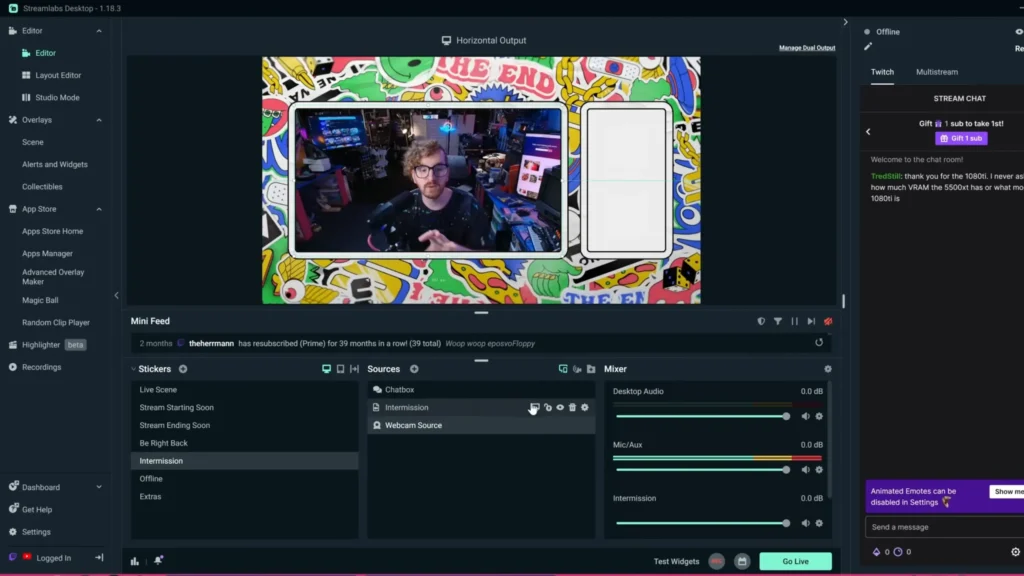
Streamlabs Desktop walks you through setup like a guided tour. Pick a theme, connect your accounts, and you’re live with a professional-looking stream in minutes. OBS Studio drops you into a blank workspace and expects you to figure out scenes, sources, and filters on your own.
Streamlabs OBS would be something like a paint-by-numbers. It’s going to turn out beautiful in the end, but you’re being guided on how to make it. Where OBS Studio is like a completely blank canvas, and you really have to figure out where to go with that canvas to make it the beauty you’re looking for.
@OSUPhoenix described them as artistry on YouTube
Mini verdict: If you want to stream tonight without watching tutorials, Streamlabs wins.
Performance and Resource Usage
The old narrative says Streamlabs Desktop has significantly more resource usage than OBS Studio. It should be corrected right now.
In reality, the gap has narrowed significantly. Most of your computer’s workload during a stream goes to encoding video, compositing scenes, and rendering sources — tasks both apps handle on your graphics card.
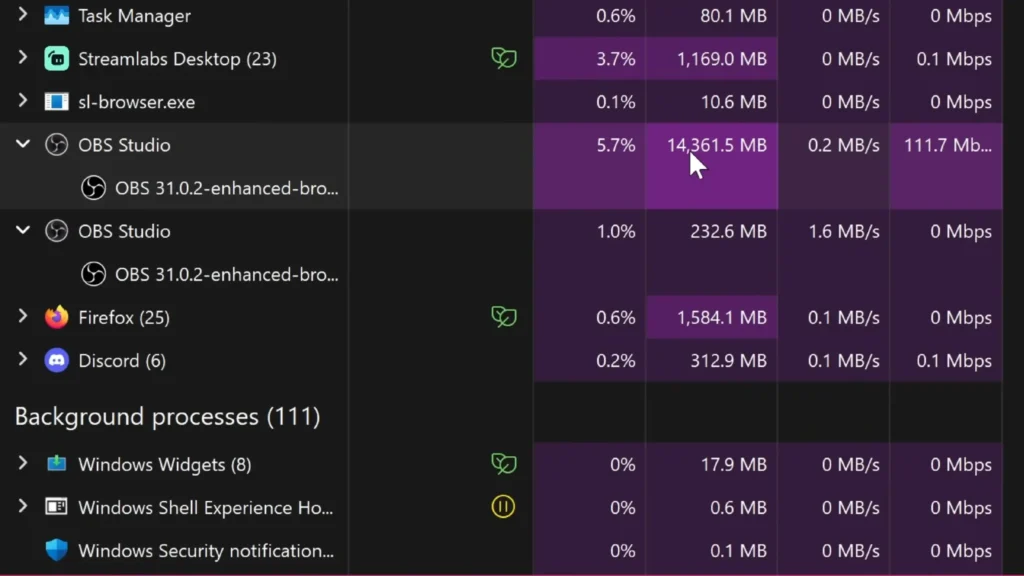
@EposVox had done a test about the resource usage in Streamlabs vs OBS. In a simple setup with just one screen capture source, OBS used significantly fewer resources (around 1% CPU and ~230 MB RAM), while Streamlabs used about 5% CPU and 1.2 GB RAM.
However, when OBS was running a full streaming scene with multiple sources, overlays, and effects, its usage increased dramatically—reaching around 6% CPU and nearly 15 GB RAM, even without actively streaming. So? Resource usage is driven more by scene complexity than by the software itself.
Mini verdict: OBS is lighter at baseline. With complex setups, the difference shrinks.
Customization and Plugin Support
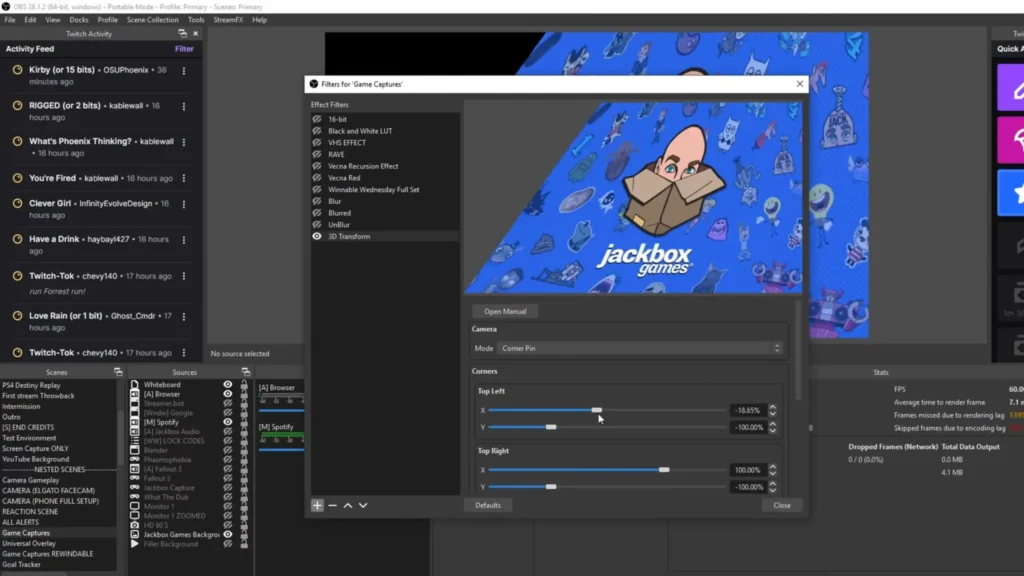
This is where OBS Studio pulls away. The community builds plugins for practically everything: advanced audio routing, on-screen drawing tools, automated scene switching, interactive chat-triggered effects, and stream deck integration.
Streamlabs Desktop doesn’t support outside plugins. Its marketplace is solid for overlays and themes, but it can’t match the range of what OBS’s community produces. If you’ve watched a streamer whose camera flips around when someone redeems a channel point — that stream almost certainly runs on OBS Studio with custom plugins.
Mini verdict: For streams that go beyond the basics, OBS Studio’s plugin ecosystem is unmatched.
Cost
OBS Studio is free. No tiers, no upsells.
Streamlabs Desktop offers a free tier, but the best overlays, themes, and multistreaming require an Ultra subscription at roughly $20/month or $150/year. If you’re just starting out without a community generating revenue, that cost comes out of pocket.
Worth noting: you can use third-party alert systems like StreamElements inside Streamlabs Desktop via browser sources at no cost. The paywall primarily gates Streamlabs’ own premium content.
Mini verdict: OBS wins on cost. But if Streamlabs’ convenience saves you hours of setup time, the subscription might pay for itself.
Updates and Stability
OBS Studio receives updates directly from its open-source contributors. Streamlabs Desktop has to adapt those OBS updates into its own codebase, which means patches arrive later, bugs can linger longer, and features occasionally break during the translation process.
Mini verdict: For the most current, stable build, OBS Studio stays ahead.
Streaming Platform Integration in Streamlabs vs OBS
Both Streamlabs Desktop and OBS Studio work with every major streaming platform — Twitch, YouTube, and Kick included. But the way they connect to those platforms differs significantly, and that gap matters if you plan to broadcast on more than one service.
Streamlabs Desktop
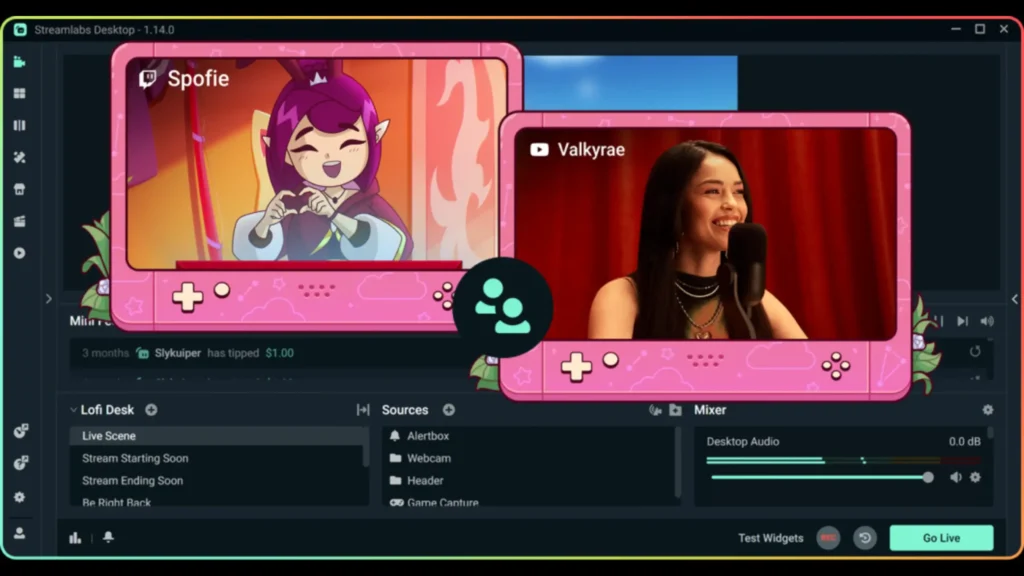
- Native login for Twitch, YouTube, Facebook, Trovo, and Kick — no manual stream keys needed
- Built-in multistreaming to all supported platforms simultaneously (Ultra required)
- Platform-specific alerts for follows, subs, and tips activate automatically once connected
- Cloudbot integration for chat moderation across Twitch and Kick
- Dual output lets you run a horizontal stream to Twitch and a vertical stream to YouTube Shorts or TikTok at the same time
OBS Studio
- Connects to Twitch and YouTube natively via built-in service list
- Kick requires a manual stream key and a custom RTMP URL setup
- Multistreaming requires a third-party plugin or external service like Restream
- Alerts handled through browser sources — paste a URL from StreamElements, Streamlabs, or any third-party service
For streamers who broadcast to a single platform, both apps do the job. The divide widens when you want to multistream. Streamlabs Desktop bakes multistreaming directly into its Go Live flow — select your platforms, toggle the sliders, and hit start. OBS Studio requires a third-party plugin or a cloud-based restreaming service, adding an extra layer to your setup.
Streamlabs vs OBS: Streaming Workflow
How to Start Streaming with Streamlabs
- Download Streamlabs Desktop from the official Streamlabs website.
- Sign in with your Twitch, YouTube, or Facebook account.
- Follow the guided setup wizard — it detects your hardware and suggests optimized settings.
- Install a scene collection from the marketplace.
- Customize alerts and widgets from the sidebar.
- Add your game or screen capture source and hit “Go Live.”
How to Start Streaming with OBS Studio
- Download OBS Studio from obsproject.com.
- Run the auto-configuration wizard to optimize settings for streaming or recording.
- Create your first scene and name it (e.g., “Gameplay” or “Just Chatting”).
- Add sources: Game Capture for gameplay, Video Capture Device for your webcam, Audio Input Capture for your mic.
- Set up audio levels in the mixer panel.
- For alerts, add a Browser Source with a URL from a service like StreamElements.
- Enter your stream key in Settings > Stream and click “Start Streaming.”
When to Use Streamlabs vs OBS
| Scenario | Streamlabs Desktop | OBS Studio |
|---|---|---|
| Brand new to streaming. Want to go live fast with zero experience | ✔ | — |
| Casual after-work streams. Game with friends, keep the setup minimal | ✔ | — |
| Multistreaming to Twitch + YouTube + Kick. Broadcast everywhere from one app | ✔ | — |
| Interactive chat-triggered effects. Channel points flip camera, raid animations, etc. | — | ✔ |
| Gaming + streaming on mid-range PC. Need every bit of CPU/GPU headroom | — | ✔ |
| Professional broadcasts & live events. Esports, conferences, and team productions | — | ✔ |
| Starting out, then leveling up later. Learn basics now, migrate when ready | ✔ | ✔ |
Streamlabs and OBS Alternatives
Free
A modern, lightweight streaming app with GPU-accelerated rendering, drag-and-drop scene building, and built-in multistreaming — all on a free tier. It even includes an OBS importer tool to migrate your existing setup. A strong pick if you want Streamlabs-level ease without the subscription.
Free tier / Paid plans from $20/mo
A browser-based studio that requires zero downloads. Guests join via a link with no account needed, making it ideal for interviews, podcasts, and panel-style streams. Less suited for high-performance gaming, but hard to beat for talk-show formats.
Free tier / Paid plans available
Cloud-based streaming that handles all processing on remote servers. The standout feature: it works directly with PlayStation and Xbox share features — no capture card or PC required. A solid choice for console gamers who want overlays and scene switching without extra hardware.
From $60 (lifetime license)
Built for professional live production. Supports multi-camera switching, instant replay, 4K/8K streaming, virtual sets, and NDI workflows. Overkill for casual streaming, but the go-to tool for esports broadcasts, live events, and studio-grade productions.
Key Takeaway
There’s no universal winner in Streamlabs vs OBS— just the right tool for the way you stream. Streamlabs Desktop excels at getting beginners live quickly with a polished look out of the box. OBS Studio rewards the time you invest with unmatched flexibility, a thriving plugin ecosystem, and zero cost.
Start with Streamlabs if you want to focus on streaming. Choose OBS Studio if you want deep customization from the start. And remember — you can always switch.
FAQs
Can I switch from Streamlabs Desktop to OBS Studio without losing my setup?
Yes. OBS Studio has an import feature that pulls in your scenes, sources, and settings from Streamlabs Desktop. The migration preserves most of your configuration.
Is Streamlabs Desktop really heavier on system resources?
At baseline, yes — Streamlabs uses more RAM due to its UI and built-in features. But your scene complexity and encoding settings have a far bigger impact on performance than the software choice alone.
Can I use StreamElements or other third-party alerts inside Streamlabs Desktop?
Yes. Add a Browser Source in Streamlabs Desktop and paste in your alert URL from StreamElements or any other service.
Do I need Streamlabs Ultra to stream?
No. The free tier covers everything you need to go live. Ultra unlocks premium overlays, themes, and multistreaming — nice to have, but not required.
Is OBS Studio only for streamers?
Not at all. OBS Studio works for screen recording, presentations, conference calls, and any scenario requiring multiple video and audio sources.
