
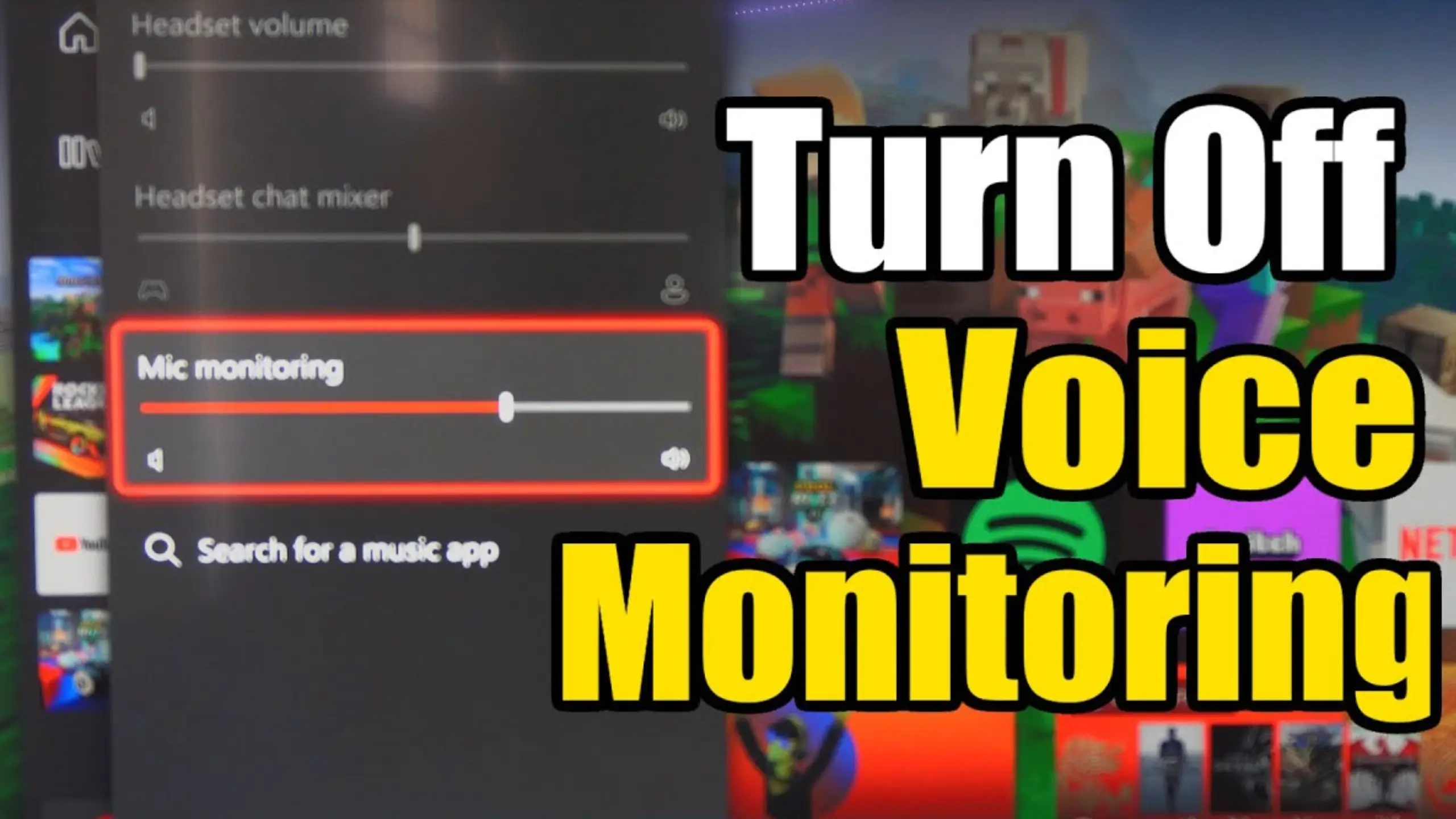
Mic Monitoring/Sidetone: What It Is and Why It Matters for Gaming

You’ve been talking for four minutes. Nobody has responded. Or the opposite: you’ve been shouting callouts into a dynamic mic from two feet away, and your squad has heard roughly none of them. That’s because you can’t hear yourself. Mic monitoring, or sidetone, isn’t just a gimmick. It routes your mic signal back into your own ears. Many microphones and headsets have made it as the highligh feature. But plenty of people still don’t know it exists. Let’s fix that.
What Is Mic Monitoring/Sidetone?
What Is Mic Monitoring?
Mic monitoring takes the audio your microphone picks up and plays it back through your headphones in real time.
The signal path is short by design:
- You speak into the mic.
- The mic converts your voice to an audio signal.
- That signal splits — one copy heads to Discord, OBS, or your game’s voice chat, the other loops straight back to your headphone output.
- You hear yourself while you’re still talking.
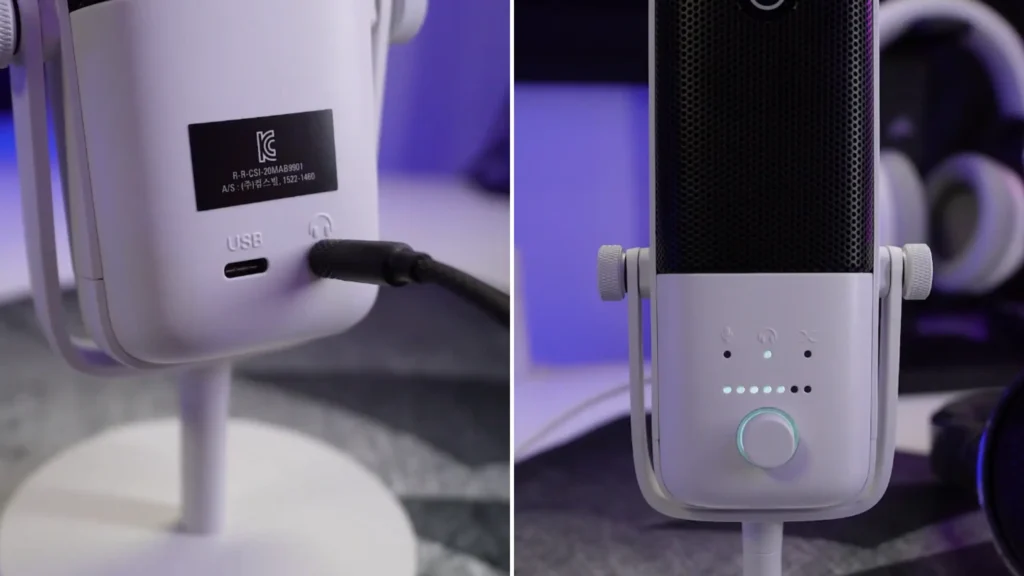
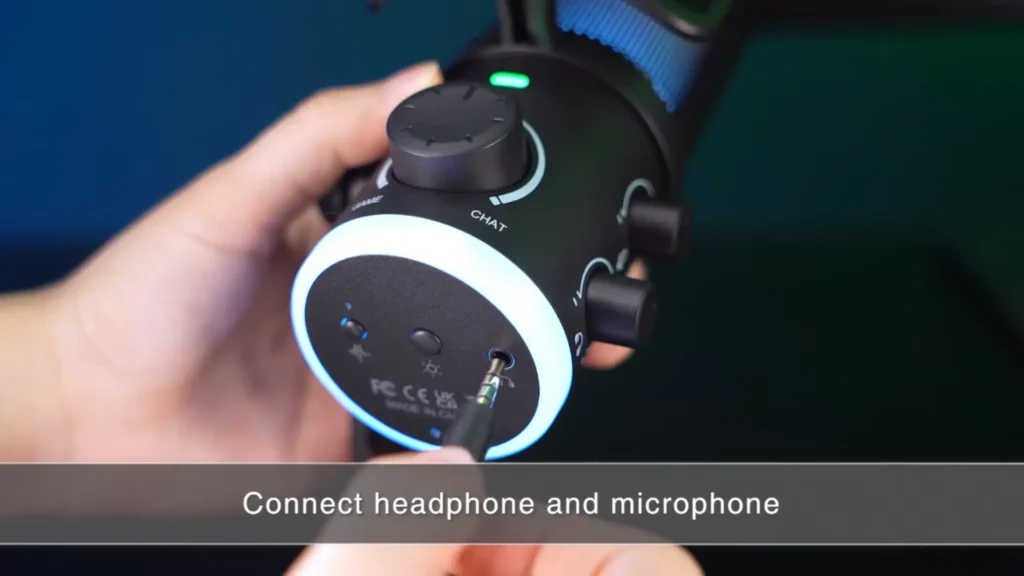
The critical part is step four’s timing. Good monitoring is instant. To use it, you need wired headphones plugged into the audio interface or directly into the mic itself. Bluetooth headphones introduce delay that defeats the whole point.
What Does “Sidetone” Mean?
Sidetone is the older term, borrowed from telephone engineering. It describes the same thing: your own voice, fed back into your own earpiece.
@HeadsetAdvisor defines it simply — your mic picks up your voice, and that sound goes into the speakers in your headset. In a normal conversation, you hear yourself automatically. Cover both ears with a sealed headset, and that natural feedback disappears, so you lose your sense of how loud you’re being.
Sidetone puts it back. On some headsets, like the Plantronics Voyager 4220, it’s a hardware setting with low, medium, and high options built into the device.
Mic Monitoring vs. Sidetone
| Mic Monitoring | Sidetone | |
|---|---|---|
| What it means | Hearing your own microphone input through your headphones | Hearing your own voice through your headphones |
| Main purpose | Helps you monitor your voice in real time | Helps you maintain a natural speaking volume and feel |
| Common devices | Gaming headsets, microphones, audio interfaces | Headsets, telephones, communication devices |
| Common use cases | Gaming, streaming, voice chat, recording | Gaming, phone calls, voice communication |
| Relationship | More commonly used as a feature name | More commonly used as an audio/communication term |
Generally, mic monitoring and sidetone describe the same basic experience: hearing your own voice through your headphones in real time. The main difference is how the terms are used by different manufacturers and in different audio contexts.
Why Is Mic Monitoring/Sidetone Important for Gaming?
You’ll know instantly when you’re muted
New streamers get bitten by this constantly. Without a chat full of viewers typing “we can’t hear you,” a dead mic can go unnoticed for a long stretch. In ranked play, one missed callout because your push-to-talk didn’t catch loses the round. With monitoring on, silence in your headphones tells you immediately.
You’ll stop shouting
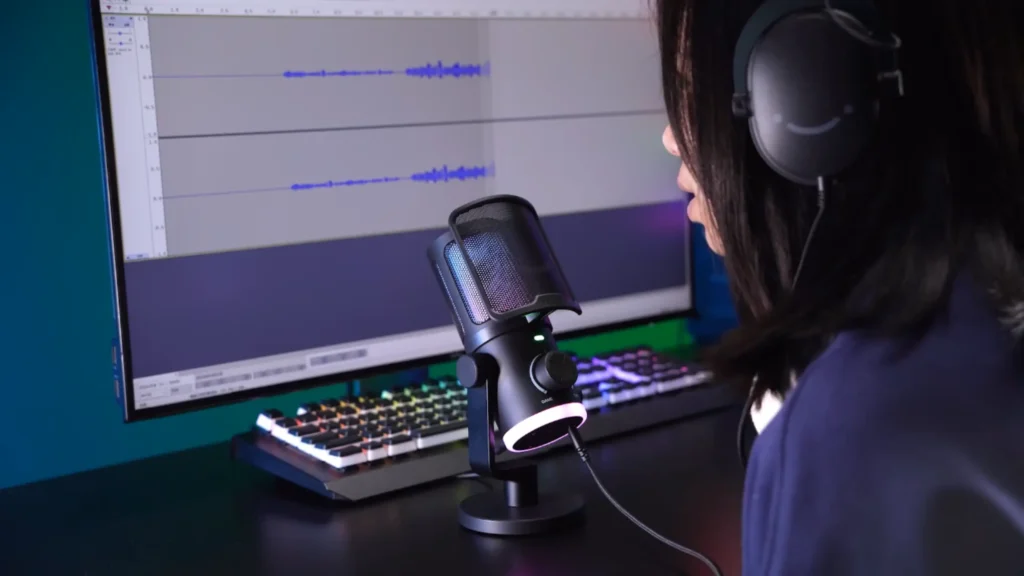
This may be good for your teammates. Sealed headsets kill the natural feedback loop that regulates your volume, so you drift louder without noticing — a problem mic monitoring solves directly by giving you a reference point.
You’ll learn mic technique
Proximity effect matters enormously with dynamic mics, which need you much closer than a condenser does. Monitoring teaches you where the sweet spot is for your voice and your specific mic, so your teammates hear you clearly. It also exposes the slight noise, keyboard bleeding, fan humming, or the plosive pop.
Is it good for everyone?
No. @HeadsetAdvisor calls it very distracting and says he has a hard time speaking with it on, like an echo in his headset. If you’re used to consoles or plain headsets, don’t force it. Try a low monitoring level first. Most people who dislike monitoring dislike it at 100%, not at 20%.
Beyond Gaming: When Can You Use Mic Monitoring/Sidetone?
Gaming gets the attention, but the feature earns its keep anywhere you’re wearing closed headphones and talking.
| Scenario | What monitoring solves | What to listen for |
|---|---|---|
| Live streaming | You hear what viewers hear, so you catch problems before chat does | Clipping on excited moments, mic drift when you lean back |
| Podcast recording | Consistent level and distance across a long session | Plosives, sibilance, chair creaks |
| Video calls and meetings | Confirms your mic is actually transmitting | Keyboard noise, background conversation |
| Voiceover and narration | Lets you shape delivery in the moment instead of re-recording | Breath noise, uneven pacing |
| Vocal recording | Real-time reference while singing over a backing track | Pitch drift, distance changes on loud notes |
| Remote work with a speakerphone | Sidetone works on any computer-connected device, not just headsets | Room echo, mic placement |
What Makes Good Mic Monitoring in fifine Microphones & Headsets?
Not all monitoring is equal. Four things separate the kind you’ll leave on from the kind you’ll switch off within a minute.
Low latency
Even a slight delay between speaking and hearing yourself creates an echo effect that makes talking genuinely difficult — the same complaint that turns people off software monitoring.
fifine mics with a 3.5mm headphone jack handle monitoring in hardware. Your voice goes from capsule to headphone output without a round trip through your operating system. In a fifine AM6 walkthrough, @Vrtuhub describes the result as instant, with zero latency, the moment he enables it.
Adjustable monitoring volume
Monitoring you can’t turn down is monitoring you’ll turn off.
Your context decides the right volume level. Loud enough to check your mic during a quiet talking segment; quieter when the game is loud and you need to hear footsteps. On a fifine AM8 mic, the headphone output level is separate from what you’re sending out. Turn your monitoring down and your teammates still hear you at full strength.
Clear and natural voice reproduction
Mic monitoring is only useful if it’s accurate. If the loopback sounds thin, boomy, or processed, you’ll adjust your voice to compensate for a problem that doesn’t exist in the actual recording.
In fifine AM6 microphone, once mic monitoring is live, the reviewer can adjust the gain and positioning, as he knows exactly how clearly the mic is picking up his voice. That only works if the monitor path is honest about what the capsule hears.
Easy-to-access controls
Physical controls on the mic body win here — you can adjust mid-sentence. The pattern holds across the category: Turtle Beach ships audio controllers with its Xbox headsets, and Plantronics puts a three-level sidetone setting directly in the headset’s own menu.
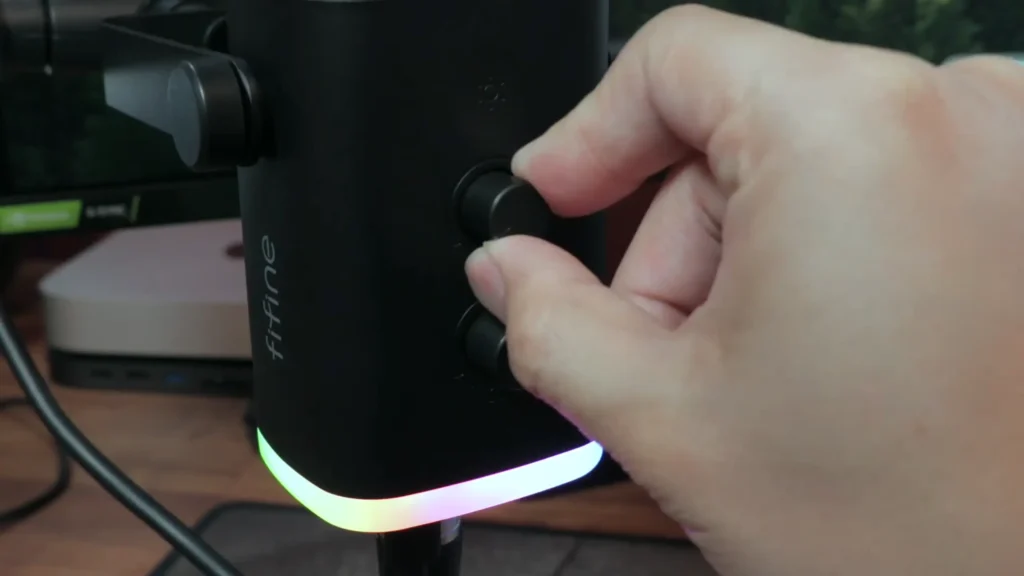
For fifine mics or headsets, the monitoring control is a button. One thing worth knowing: monitoring may arrive muted out of the box. It’s good for first-time users, as hearing multiple sounds at the same time can be overwhelming.
How to Set Up Mic Monitoring/Sidetone on a fifine Microphone or Headset
In fifine microphones like AM8 or AM6, there’s a headphone jack for monitoring. The fifine headsets also allow monitoring features with the button control. With the fifine mic monitoring guide, you’ll handle it easily.
For Windows:
- Step 1 — Connect the headphones to your microphone. On the AM6, it’s on the bottom of the mic body.
- Step 2 — Find the “Sound Settings” and open the “Sound Control Panel”.
- Step 3 — Go to the “Recording” tab. Set the fifine device as the default device in the input setup.
- Step 4 — Go to the “Playback” tab. You’re configuring what comes out of the mic’s headphone jack. Then select your fifine device as the default device.
- Step 5 — Stay on the “Playback” section. Click “Properties”, then the “Levels” tab. You’ll see a Microphone slider that’s muted by default. Unmute it. You should hear yourself immediately.
- Step 6 — Set your level. Click OK and done.
For macOS, click the Apple icon in the top-left corner of the screen and select “Sound.” Once in the sound settings, select the Fifine device as both the input and output device.
Conclusion: Is Mic Monitoring/Sidetone Worth It?
It’s worth it if you talk to people while wearing closed headphones. It solves three problems at once: the muted mic, the shouting, the bad positioning. The condition is that you have to like hearing yourself. If you don’t adapt to it, turn monitoring to a whisper-level setting and make it a status light.
Picking a mic or headset for streaming or podcasting? Consider the mic monitoring or sidetone. Knowing how you sound is what lets you connect with the people listening.
So plug in your headphones. Unmute the slider. Say something.
FAQs
Is mic monitoring the same as sidetone?
Effectively, yes. Gaming and streaming brands say “mic monitoring”; telephony and office audio brands say “sidetone.” The meaningful distinction is whether the loopback happens in hardware (instant) or in software (delayed).
Why can’t I hear myself even though my fifine mic has monitoring?
It’s most likely muted by default. Open the Control Center, go to the Playback tab, select your fifine device, open Properties, click Levels, and unmute the Microphone slider. The AM6 reviewer assumed the feature was missing entirely before finding this setting.
Can I use wireless headphones for mic monitoring?
Not effectively. Bluetooth adds delay, and delay is exactly what makes monitoring unusable. You need a wired connection into the mic, the audio interface or the headset itself.
Does mic monitoring change what other people hear?
No. Your monitoring volume is separate from your outgoing signal. Turning your monitor down won’t make you quieter to your squad.
Why does mic monitoring sound like an echo?
You’re probably using software monitoring, where the signal takes a round trip through your operating system. Switch to hardware monitoring through your mic’s 3.5mm jack if it’s available. If it isn’t, lower the monitoring volume — a subtle level is much easier to tolerate than a loud one.
