
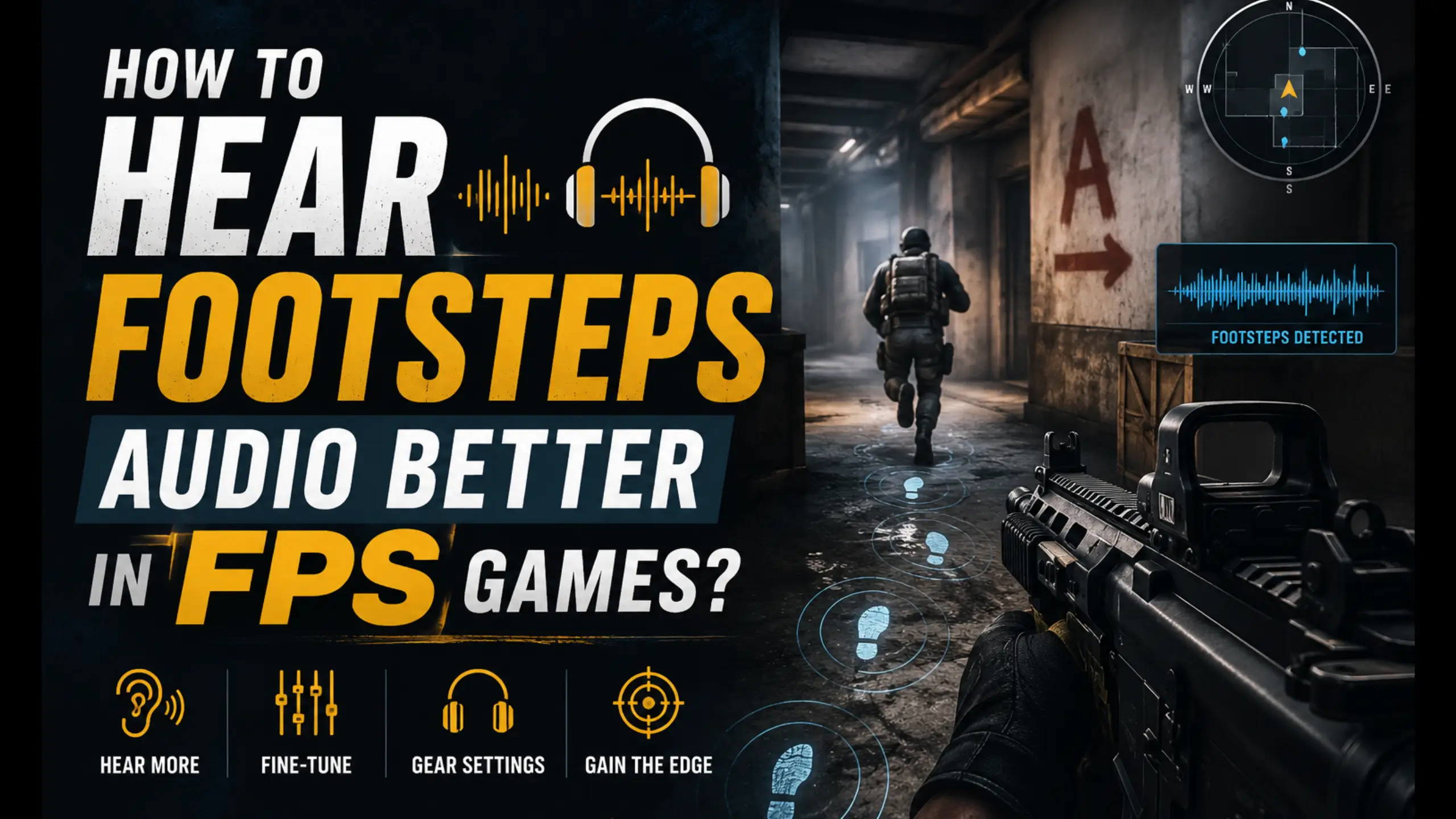
How to Hear Footsteps Audio Better in FPS Games?

Sound is information. In FSP games like Counter-Strike 2, Valorant, Warzone, or Apex Legends, the player who hears a footstep first gets to decide the fight before it starts. But not all players react seamlessly with the footsteps audio.
How to hear footsteps audio better in FPS games? Not only do your headsets matter, but a stack of settings you may not touch help it: in-game audio, Windows sound options, and a free equalizer sitting idle in the background. Follow our steps to fix your footsteps audio, so you can stop guessing and start hearing.
Quick Review for Footsteps Audio Setup
| Layer | What to do |
|---|---|
| Headset | Pick a neutral or V-shaped set with a wide soundstage. Tuned for footsteps; beats fixing a bad signature later |
| In-game | CS2: crisp profile, ~80% isolation, perspective correction on. Valorant: HRTF on |
| Windows | Loudness equalization on (check league rules), spatial sound off, small bass boost at 150 Hz |
| EQ software | Equalizer APO + Peace: high-pass at 100 Hz, boost 1 kHz, cut 3.7 kHz and 10.5 kHz, then add the surround effect |
Where Footsteps Actually Live
Before you touch a single slider, it helps to know where footsteps sit on the frequency spectrum. In most games, they show up across three main ranges.
| Frequency range | What it carries | Why it matters |
|---|---|---|
| 150–450 Hz | The body and thump of each step | The single most important range. If you only boost one, boost this |
| 1 kHz–3.5 kHz | Texture — the surface someone is walking on | Tells you what they’re stepping on and helps separate steps from the mix |
| 4 kHz–5 kHz | Clarity and crispness | Where steps get their edge. It’s also home to reload sounds |
Every trick later in this guide does one of two things: lifts these ranges or cuts the noise that buries them. Keep that in mind, and the settings stop feeling random.
Start With Picking the Right Headset
A good gaming headset can make your footsteps audio as clear as possible. If your headset already emphasizes those ranges, you’ll hear footsteps clearly before you change a thing. So what makes the best gaming headset for footsteps?
Sound Signature — Favors The Footstep Ranges
Sound signature is the headset’s built-in EQ — the shape of its sound straight out of the box. Three common signatures show how this plays out.
| Headset (example) | Signature | What does it mean for footsteps |
|---|---|---|
| FIFINE H19 (open-back) | Neutral | Open-back tuning that doesn’t inflate the low end, so bass won’t mask cues — plus a wide, airy soundstage for placing sounds |
| FIFINE H9 (closed-back) | V-shaped | Boosted bass and treble for weighty, crisp footsteps, while sealed cups block outside noise |
| Sennheiser PC38X | Hybrid | A middle ground — less boosted than a V-shaped set, but not perfectly flat either, with a moderate soundstage |
A Wide Soundstage — Where a Sound Is Coming From
Soundstage is how well a headset spreads sound around you — left, right, front, and back. It matters for any gaming headset for FPS games.
If you want a gaming headset for directional audio and sound positioning, this is the spec to watch, because a wider stage makes it far easier to call out a flank. A V-shaped set like the FIFINE H9 headset leans into both the low thump and the high-end crispness of footsteps, while its sealed cups keep room noise out.
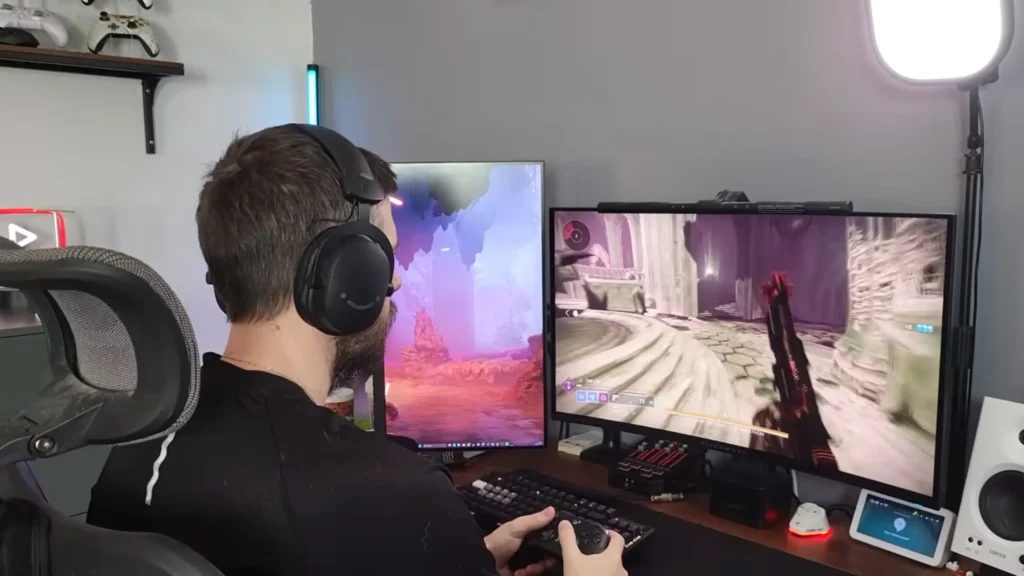
A more neutral, open-back set like the FIFINE H19 gaming headset takes the opposite approach: it doesn’t boost the bass, which prevents the low end from burying enemy cues, and its open design widens the soundstage, making directional audio easier to read.
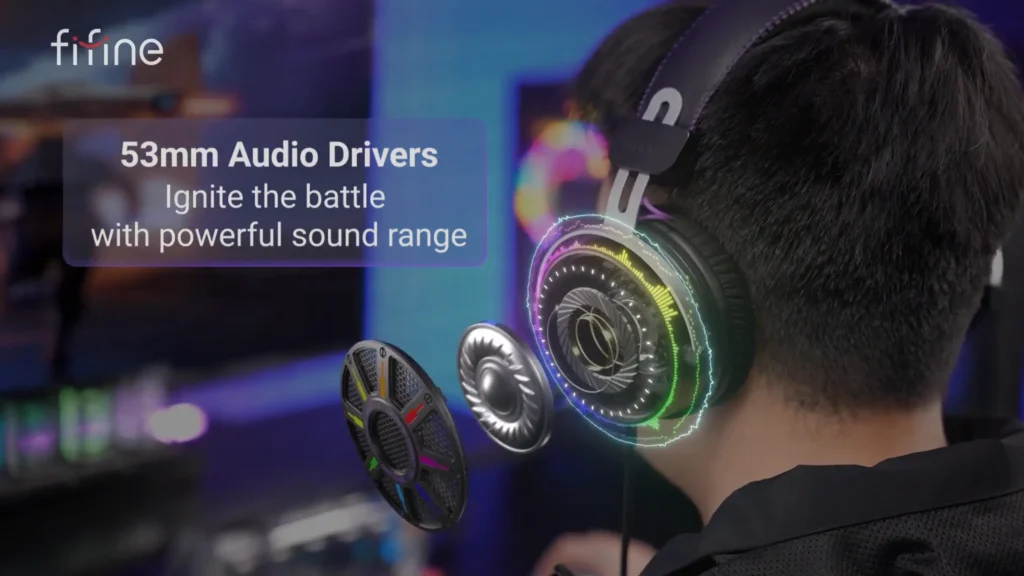
Bottom line: a headset tuned for footsteps out of the box beats fighting a bad one with software. Get the hardware right and everything below becomes fine-tuning.
Dial In Your In-Game Settings First (No Downloads)
Before you install anything, the game itself holds the highest-leverage free settings you’ve got. They cost nothing and take two minutes. Take a quick shot in the in-game settings:
| Game | Key setting | Recommended value |
|---|---|---|
| CS2 | Sound profile/isolation/perspective correction | Crisp / ~80% / On |
| Valorant | HRTF | On, with default devices |
| Warzone & Apex | Lean on Windows + EQ | See the sections below |
Hear Footsteps Better In CS2
- Start with a sound profile that features smooth, natural, and crisp. Crisp lifts the mids and highs, exactly where footsteps and gunfire sit, so steps cut through with more clarity. It isn’t a dramatic jump from natural, but that extra edge helps footsteps pop.
The exception: if your headset already pushes the highs hard and crisp starts sounding harsh, drop back to natural. Either way, skip smooth. It pulls the mids and highs down too far, which is the opposite of what you want.
- Next, left/right isolation. At 0%, the two channels bleed into each other, so an enemy on your left still leaks into your right ear, and everything sounds centered and mushy. At 100%, each side is fully isolated — accurate, but extreme.
The sweet spot is 50–80%. Gamer @ThundaShelly used to sit near the top of that, around 80%, for clean separation without it feeling unnatural.
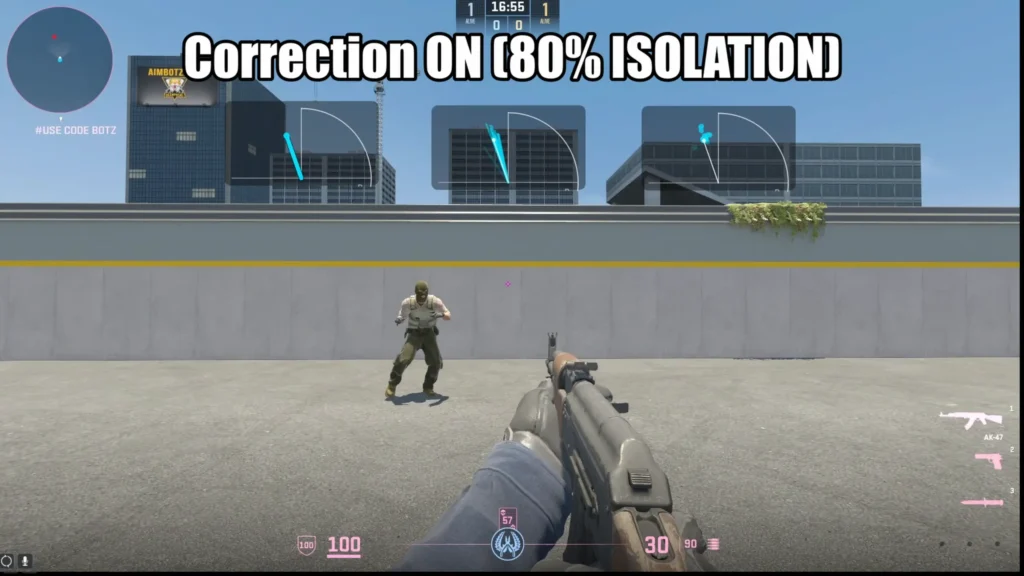
- Finally, turn perspective correction on. With it on, sounds line up with what’s on your screen — an enemy near the edge of your view doesn’t slam hard to one side until they’re actually off-screen. That keeps what you hear matched to what you see.
Want the full rundown on CS2 audio and beyond? Our best CS2 setting guide goes deeper.
Hear Footsteps Better In Valorant
Valorant keeps it simpler. Open your audio settings, make sure you’re using your default input and output devices, then head to the sound section and enable HRTF. That’s the big one — HRTF processes audio so you can actually tell direction, which is the whole game when you’re trying to place a step.
Gamer @SaneGamingYT switches the Windows playback driver from Realtek to the generic Microsoft audio driver and finds footsteps come through better. Try both and trust your ears.
Hear Footsteps Better In Warzone & Apex Legends
Call of Duty: Warzone, Apex Legends, and PUBG lean less on deep in-game menus, so most of your gains come from the next two layers — Windows settings and EQ. The good news is the principle never changes. The footstep frequencies are the same everywhere, so once you’ve tuned for one game, you’ve basically tuned for all of them.
Windows Sound Settings Worth Changing
These live in your Windows sound settings and apply across every game at once.
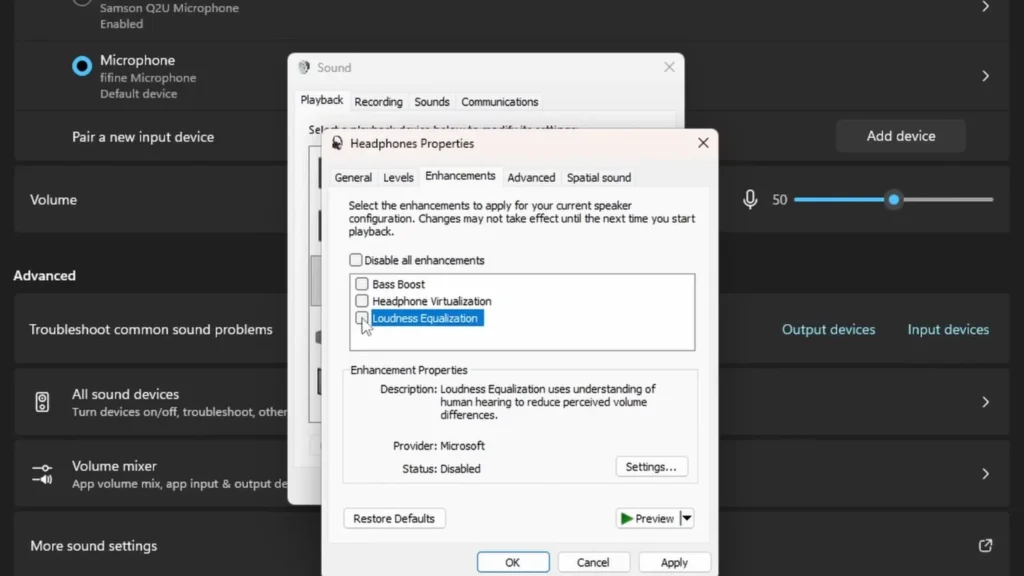
Open Sound settings, find your headset, and look for the Enhancements tab. If it’s missing, make sure audio enhancements are turned on for your default playback device. Sometimes, plugging your headset into a front-panel port instead of the motherboard makes the tab appear.
Once you’re in, three options matter.
- Loudness equalization is the big one. Quiet sounds get pulled way up, and loud sounds get reined in, so a faint footstep can end up nearly as loud as a gunshot next to you. The catch is you lose your sense of distance, and everything starts to feel close.
- Spatial sound, you’ll generally want off. Most games already run their own 3D audio processing, so stacking a generic layer on top tends to get in the way more than it helps.
- Bass boost is a minor one. Set it around 150 Hz at roughly 6 dB, and you’ll nudge the body of footsteps up a touch. It’s limited, but it’s free and quick to test.
Go Further With a Free EQ (Equalizer APO + Peace)
If you want to take footsteps audio further, a free system-wide equalizer is the next step. The standard combo is Equalizer APO plus the Peace interface.
Equalizer APO is the engine. Once installed, it overrides everything and applies to whatever sound runs through your headset. But it doesn’t have a usable front end on its own, so you pair it with Peace, a graphical interface that sits on top.
Install Equalizer APO, select your headset, and reboot. Then install Peace and open the full interface so you can see every band. Loading the 7.1 setup gives you a sensible starting point.
The Footstep EQ Recipe
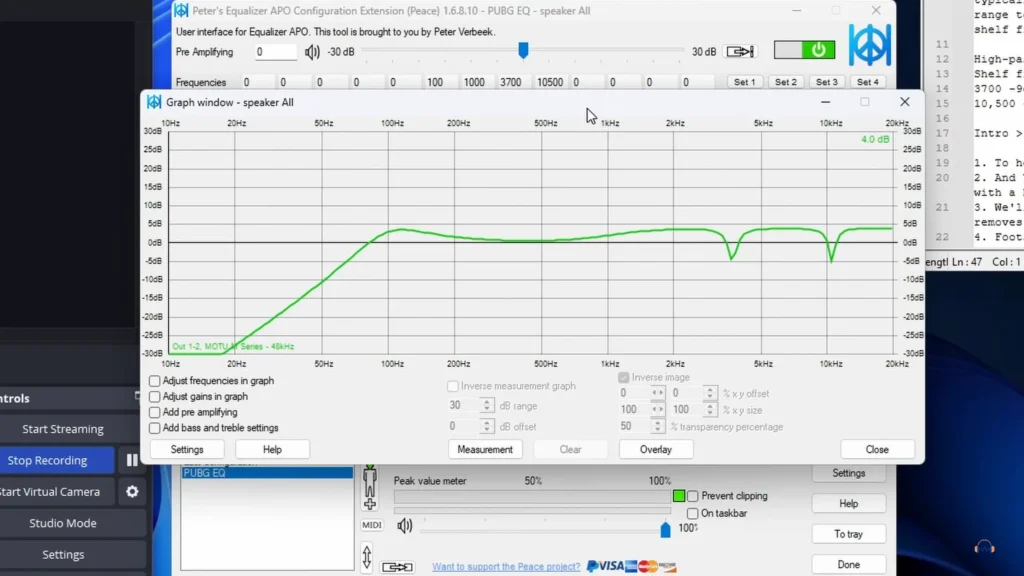
Footsteps mostly live between 1 kHz and 4 kHz, so the plan is simple: lift that band, and carve out the harsh spikes that mask it.
| Filter | Frequency | Setting | What it does |
|---|---|---|---|
| High-pass | 100 Hz | — | Cuts the low rumble that masks in-game cues |
| High shelf (boost) | 1 kHz | Boost up | Lifts the 1–4 kHz footstep band |
| Peak (cut) | 3.7 kHz | −9 dB, Q 9 | Tames the concussion spike from flashes |
| Peak (cut) | 10.5 kHz | −9 dB, Q 9 | Tames the high ringing from grenades |
Leave the remaining bands flat. Those two sharp cuts are deliberate — without them, boosting the surrounding range would get painful to listen to. The result is clear: footsteps that were buried and muffled under other effects came right to the front.
Virtual Surround On The Cheap
When it comes to stereo sound vs surround sound in gaming headsets, the surround sound turns two channels into a full picture around you. That’s why many gamers prefer gaming headsets with 7.1 surround sound, like FIFINE H9 gaming headset.
Don’t have a surround headset? Peace can boost the surround sound effect. Open the effects panel and enable it, and Peace builds a virtual surround setup into your headset — delays for the front, rear, and subwoofer channels, a bass preserver so the low end doesn’t get drowned out, and front, side, and rear width controls that make sounds feel like they’re coming from a real direction.
One rule for setting surround sound in Peace: don’t stack 3D processors. Either let the game handle 3D with Windows spatial sound off, or run a single virtualizer like Peace’s surround effect. Two layers on top of each other only muddy the image.
Other housekeeping note: test for clipping. Play a track, and if the meter lights up red, you’re clipping — enable prevent-clipping and Peace pulls the level back automatically when it happens.
Final Recall for Hearing Footsteps Audio Better
So, how to hear footsteps audio better in your FPS games? Start at the top. Get a headset that already favors footstep ranges, dial in your in-game settings, and you’re almost done. Everything past that is sharpening an edge you already have — and in a game decided by who hears the step first, that edge is worth chasing.
FAQs
How do I hear enemy footsteps better without buying a new headset?
Work the free layers first. Tune your in-game audio (crisp profile and high isolation in CS2, HRTF in Valorant), turn on loudness equalization in Windows, and add a free EQ with Equalizer APO. You can get most of the way there without spending a cent.
Is loudness equalization cheating?
It’s a legitimate Windows setting, but it’s strong enough that some pro leagues ban it. For casual play, it’s a fair game. For ranked or tournaments, check the rules before you turn it on.
What’s the best frequency to boost for footsteps?
Start in the 150–450 Hz range for the body of the step, then lift the 1 kHz–4 kHz band where most footstep detail lives. Those two moves carry most of the benefit.
