
Best CS2 Settings in 2026: 9 Tips for FPS, Visibility, and Audio

You may fall into this trap: start the CS2, but everything feels heavy, blurry, or just wrong. Even if you follow the pro config line by line, something still goes wrong. That’s because settings aren’t one-size-fits-all. Some are pure preference. A handful genuinely wins you rounds.
The best CS2 setting? This guide cuts through that. We’ll go setting by setting — video, sensitivity, crosshair, binds, and audio — and tell you what to change, what to leave alone, and where the smart starting point is.
Head-to-Head: Quick Look at the Best CS2 Settings
Before we get into the why behind each choice, here’s the whole setup in one place.
Video and performance
| Setting | Recommended | Why |
|---|---|---|
| Display mode | Full screen | Lowest input latency |
| Resolution/aspect ratio | 1920×1080 (16:9) or 1280×960 stretched (4:3) | Native = clarity; stretched = bigger models, more frames |
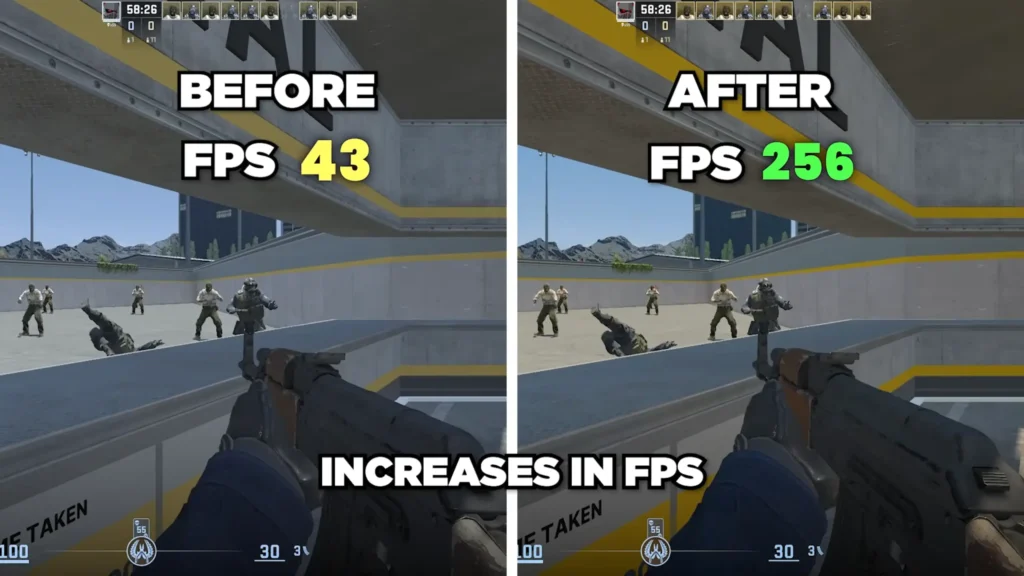
| Vsync | Off | Removes input lag |
| Nvidia Reflex | Enabled (+ Boost on strong PCs) | Trims render latency |
| Max FPS (in-game) | Uncapped, or just above refresh rate if stuttering | Smoother frame delivery |
| Max FPS (menus) | Low | No reason to run hot in menus |
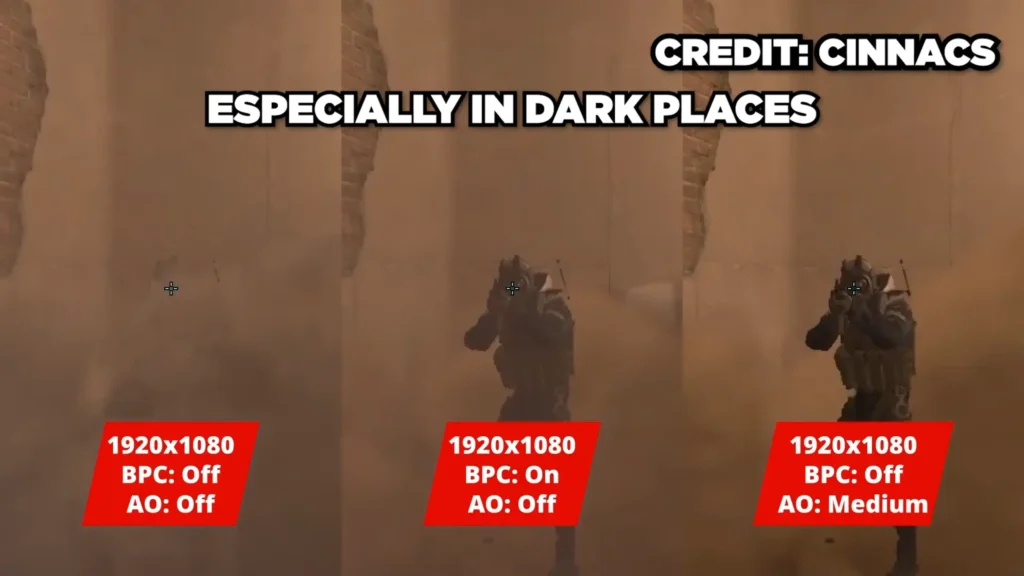
| Boost player contrast | Enabled | Makes enemies pop in dark spots |
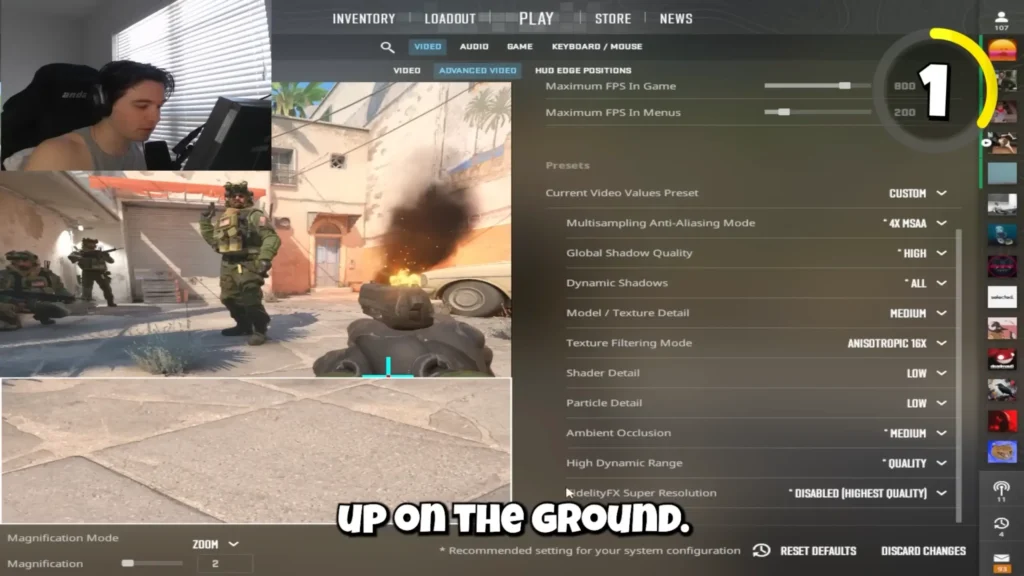
| Global shadow quality | High | Preserve distant player shadows and provide earlier info around corners |
| Dynamic shadows | All | Improves environmental shadow consistency |
| Ambient occlusion | Medium | Adds subtle environmental depth cues. Some prefer off for clarity |
| MSAA | 2x (native) / 2x–4x (stretched) | Smooths stretched models |
| Model & texture detail | Medium | Cleaner dinks, near-zero FPS cost |
| Texture filtering (anisotropic) | 16x | Sharper at distance, basically free |
| Shader detail | Low | No competitive value |
| Particle detail | Low | You can’t see through smoke or Molotovs in CS2 anyway |
| High dynamic range | Quality | Quality for more consistent lighting. Performance improves visibility. |
| FidelityFX Super Resolution | Disabled (lower for more FPS) | Upscaling trade-off |
Sensitivity and crosshair
| Setting | Recommended | Notes |
|---|---|---|
| Sensitivity | 1.0 at 800 DPI (800 eDPI) | A common starting point for tactical FPS players |
| Full-swipe test | 180–360 degrees | Must at least clear a 180 |
| Crosshair | Small, static, classic | Borrow a pro’s or use Crashz’s generator |
| Crosshair outline/shadow | On | Stays visible on bright surfaces |
| HUD color | Anything but red | White reads low HP and ammo best |
Game settings and binds
| Setting | Set to | Why |
|---|---|---|
| Detach M4A1-S / USP silencers | Off | Avoid ripping the silencer off mid-fight |
| First-person tracers | On | Helpful visual feedback for newer players |
| Always show inventory | On | Utility stays visible |
| Show location and equipment | On | Read teammate positions |
| Weapon and grenade switching | Dedicated key binds (not scroll wheel) | Stops fumbling in a clutch |
| Jump-throw / W jump-throw | Autoexec binds | Consistent utility lineups using legal alias binds |
Audio
| Setting | Recommended | Why |
|---|---|---|
| EQ profile | Natural (test Crisp) | Most players locate sound better on Natural |
| Left/right isolation | ~50% (try 50–70%) | Sharper directional read |
| Perspective correction | Off | Mangles positional audio |
| 10-second bomb warning | Loud | Don’t miss the timer |
| MVP music (both teams alive) | Muted | Don’t let it bury footsteps |
| Windows output | 24-bit, 48,000 Hz | Matches the CS2 engine, no resampling |
Tip 1: Pick Your Resolution and Aspect Ratio First
Plenty of pros still play stretched 4:3 at 1280×960 — one config survey put 85% of them on 4:3. Stretching makes models wider and easier to hit, but it also sends players “across your screen at literal mach speed,” which can wreck your tracking until you adapt.
Native 1920×1080 on 16:9 gives the full view and a cleaner image; the trade is frames, since 1080p can run 30 to 50 fewer than 960 stretched.
The rule of thumb: pick whatever your PC holds above your refresh rate — if you can’t sustain 300-plus on 1080p, drop to stretched.
Tip 2: Kill Input Lag First
- Full screen gives the lowest latency, and windowed full screen is almost as good now after recent updates.
- Vsync stays off unless you’re fighting screen tearing. As @Skyed said, “always off. This adds input lag. No exceptions.”
- NVIDIA Reflex is where guides split: the standard call is Enabled + Boost on a strong PC, or just Enabled if Boost hurts your frames.
Some players now cap frames in the Nvidia control panel instead and report smoother frame times, and Reflex can misbehave on certain Windows 11 setups. Chasing the last few percent? Test both. Everyone else, leave it enabled.
Tip 3: Cap Your Frames Sensibly
Set in-game max FPS high. But if you stutter, cap it just above your refresh rate — that’s steadier than an uncapped number bouncing around. Keep menu FPS low; there’s no reason to cook your PC while you pick a loadout.
Tip 4: Tune Your Visibility (This Wins Gunfights)
In CS2, settings that are too low make enemies harder to see, so clarity is competitive, not vanity. Boost player contrast on — it brightens models so they pop in dark corners, for about 10 FPS.
Global shadow quality is the biggest FPS lever and the most argued setting: on low or medium, player shadows fade at range, and that shadow is often your first read on a corner-creeper. Most competitive players land on high — shadow intel kept, frame cost manageable — and dropping it is the fastest way to claw frames back if you’re struggling.
Set dynamic shadows to All, not Sun Only, so you still see shadows thrown by interior lights on maps like Ancient and Nuke. Ambient occlusion on medium adds wall shadows you can pre-fire. For MSAA(anti-aliasing), 2x or none is plenty at native; bump to 2x–4x on stretched or models look “straight out of Roblox.”

Tip 5: Trim The FPS Hogs
These give frames back for little or no cost:
- Model and texture detail: Medium. Barely touches FPS and makes dinks register cleaner.
- Anisotropic / texture filtering: 16x. Near-zero cost, sharper at distance, easier grenade lineups.
- Shader detail: Low. No competitive value.
- Particle detail: Low. CS2 normalized smoke and Molotovs, so high gives no peek advantage anymore.
- High dynamic range: Quality, to cut graininess.
- FidelityFX Super Resolution: Disable if you already hit enough frames; push toward performance for more FPS at the cost of sharpness.
Tip 6: Find a Sensitivity, Then Leave It Alone
Quick test: swipe your mouse fully across the pad. Land between a 180 and a 360, and you’re healthy — you need at least a 180 to whip around when someone’s on your back.
No starting point? A flat 1.0 at 800 DPI (800 eDPI) sits at the pro average; roughly 75% of pros run 600 to 1,000 eDPI, and 800 is the single most common.
Drill it in a map like aim_botz, adjust for over- or under-flicking, then “quite literally never change this sensitivity again.” Muscle memory is the whole point.
Tip 7: Build a Crosshair For Your Aim
Use Crashz’s crosshair generator on the Steam Workshop, or copy a pro. Most run a small, static, classic crosshair without a dot.
Newer players can use a dynamic or follow-recoil crosshair to learn sprays — just know follow-recoil gets twitchy on pistols and burst fire.
Sprayers do better with a bigger crosshair to track and pull down; tappers go smaller, aimed at head level.
Add an outline or shadow so it stays visible on bright surfaces, and pick any HUD color but red — white reads low HP and ammo best.
Tip 8: Fix Your Game Settings and Binds
- Detach M4A1-S / USP silencers: Off. Nobody enjoys ripping a silencer off mid-fight.
- First-person tracers: On, for spray feedback.
- Always show inventory: On, so the utility stays visible without re-equipping.
- Show location and equipment: On, to read teammates and team-flash risk.
- Binds: Give each grenade its own key and never scroll through them in a clutch. Don’t scroll-switch weapons either.
- Going further: Set autoexec jump-throw and W-jump-throw binds for repeatable lineups.
Tip 9: Treat Audio As a Competitive Setting
This is the cheapest edge in the game — hearing a step, reload, or defuse before you see anything wins rounds.
- The labels suggest Crisp for the EQ profile, but most players sound better on Natural; Start on Natural and try both.
- Left/right isolation around 50% sharpens direction — drop it to 0% if it doesn’t click.
- Keep the 10-second bomb warning loud, mute MVP music while both teams are alive, and set your Windows output to 24-bit, 48,000 Hz to match the CS2 engine.
- Turn perspective correction off, since it mangles positional audio.
For perspective correction, honestly, it seems terrible. I have no idea why this is on by default, and I’ve seen literally lonus Tech tips mention that it ruined their ability to hear anything.
@vooCSGO on YouTube.
Pro Tips: Your Headset and Mic Do The Heavy Lifting
Settings get the audio to your ears; your hardware decides whether you can use it.
Directional cues — an enemy on your left versus directly behind — only land if your headset reproduces them, so our roundup of the best streaming headsets covers which ones give clean footstep imaging without coloring the sound.
If you play with comms or want to stream, your mic is the other half: start with choosing a streaming microphone, like the FIFINE AM8 microphone. Then nail the fundamentals with dynamic vs condenser microphones and XLR vs USB microphones. Those choices shape your sound more than any single setting here.
Final Words
The best CS2 setting is always on the adjustment. It should always meet your needs, not be one-size-fits-all. Start a resolution you can hold above your refresh rate, Kill Vsync, sort your input-lag settings, and cap frames sensibly. Find an 800-eDPI-ish sens, drill it, and leave it.
Don’t miss your audio settings, because whoever hears first usually shoots first. That said, what you need matters most. Adjust to fix you most and keep it.
FAQ
Should I turn Nvidia Reflex on or off?
For most players, leave it on — Enabled + Boost on a strong PC, or just Enabled if Boost costs too many frames. Some players now cap frames in the Nvidia control panel instead, and Reflex can act up on certain Windows 11 setups, so test both if you want to optimize hard.
What sensitivity should I start with?
A flat 1.0 at 800 DPI (800 eDPI) sits at the pro average — most pros run 600 to 1,000 eDPI. Drill it on a workshop map, adjust until your flicks land, then commit and build muscle memory.
Is Crisp or Natural better for hearing footsteps?
Crisp boosts the high frequencies footsteps live in, but most players locate sounds better on Natural. Start on Natural, test Crisp back to back, and keep whichever lets you pinpoint enemies faster.
Which setting kills my FPS the most?
Global shadow quality. Lower it for frames, but know that low settings make player shadows fade at range — most players keep it on high to hold the shadow advantage while staying smooth.
Do I really need a good headset and mic?
Settings get the audio information to your ears, but your headset decides whether you can use it. Accurate directional sound turns a footstep into a kill, so the hardware matters as much as the config — especially if you’re streaming and need clean comms on top.
