
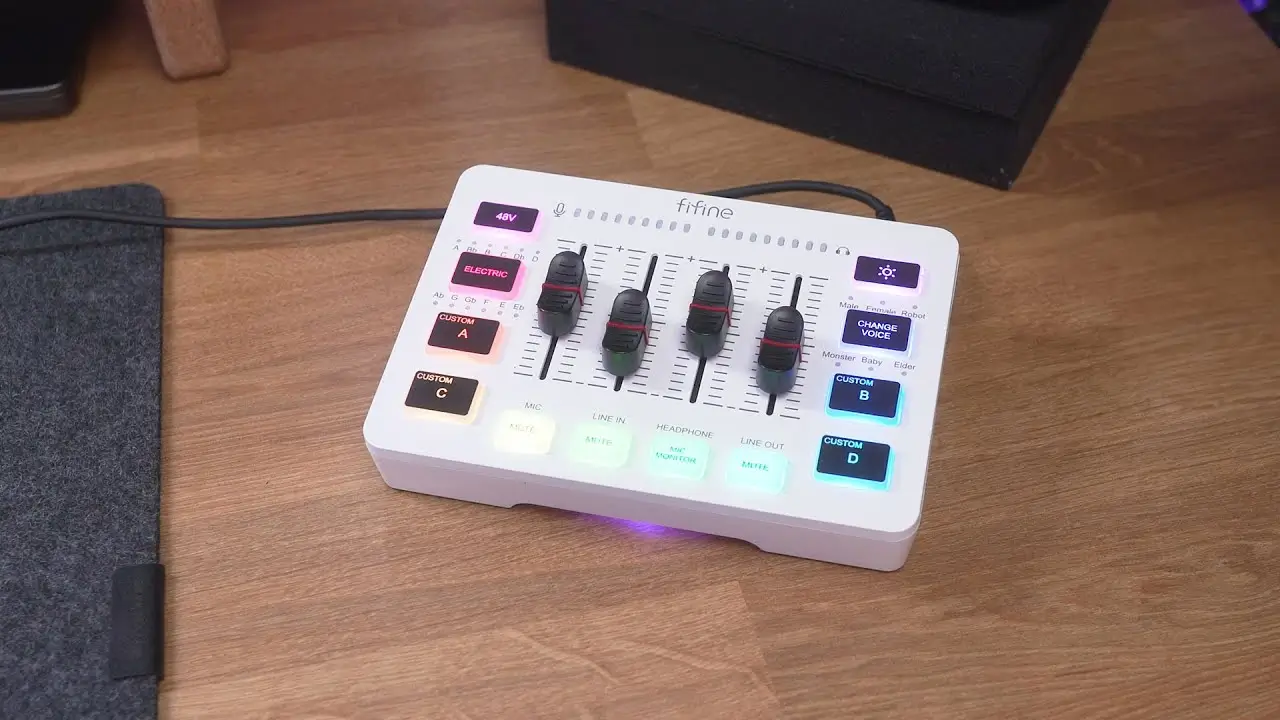
FIFINE SC3 Review: The $50 Gaming Mixer For Additional Features

Let’s cut to the chase: The FIFINE SC3 offers a surprisingly robust feature set that makes it hard to ignore, whether you’re just starting your streaming journey or looking for a compact secondary mixer.
Think of the SC3 as a budget GoXLR alternative. For beginners or anyone running a simple one-PC setup, it checks nearly every box you’d want. We spent weeks testing this mixer based on the FIFINE SC3 review, comparing it against the Focusrite Scarlett 2i2 and running it with several FIFINE microphones. Here’s what we found.
Quick Verdict on FIFINE SC3 Review
Price: $49.99
Available Colors: Black & White
Overall Score: 8.2/10
| Metric | Score |
| Audio Quality | 8/10 |
| Build Quality | 7/10 |
| Features & Value | 9/10 |
| Ease of Use | 9/10 |
| Design & RGB | 8.5/10 |
Pros
- Plug-and-play setup with zero driver installation
- 48V phantom power for condenser microphones
- Six voice changer effects plus 12 autotune modes
- Four programmable custom sound buttons
- Eye-catching RGB lighting with multiple modes
- Works with PC, Mac, PS4, and PS5
- XLR/TRS combo jack with 50dB mic gain
- Real-time audio monitoring with no latency
- Compact, travel-friendly design (8″ x 5″)
Cons
- Faders feel slightly wobbly (expected at this price)
- Custom button recordings have a lower sample rate
- No Bluetooth connectivity
- Cannot separate PC audio channels individually
- Audio meters are not fully accurate
- Plastic construction throughout
FIFINE SC3 Review Exploration
Let’s go into the theme and check out the specific FIFINE SC3 review in various aspects.
Audio Quality
Score: 8/10
The FIFINE SC3 audio mixer delivers surprisingly clean audio for its price point. The 50dB of mic gain provides plenty of headroom for most dynamic microphones.
When running the FIFINE AM8 microphone through the XLR connection, it’s surprising that the sound is clear and detailed. Then, we ran direct comparisons between the AM8’s USB output and its XLR connection through the SC3. The verdict? Audio quality was nearly identical, with the XLR route coming in slightly louder.
Compared to the Focusrite Scarlett 2i2 (a $150 interface), the SC3 holds up remarkably well. We’d estimate it delivers roughly 90% of Scarlett’s quality at a third of the price. But there’s a thing, SC3 focuses more on the additional features and routing options, not a massive audio upgrade.
What sounds good:
- Clean mic preamp with minimal noise floor
- Sufficient gain for dynamic microphones
- Clear headphone monitoring output
- Line input handles phone and tablet audio cleanly
Where it falls short:
- Custom button recordings have noticeable quality loss due to a lower sample rate
- Audio meter display isn’t accurate—actual levels run louder than indicated
Build Quality
Score: 7/10
Let’s be real: SC3 is made of plastic mostly. The entire chassis is plastic, the fader knobs are plastic, and only the rubber buttons at the bottom break up the material palette. That said, it’s quality plastic that doesn’t feel cheap or flimsy.

The wedge-shaped design angles the mixer toward you for comfortable viewing and operation. Four rubber feet on the bottom prevent sliding during use. A small detail that matters when you’re reaching for buttons mid-stream.
Fader movement is smooth and stepless, though there’s a slight side-to-side wobble. It’s not a dealbreaker, but you’ll notice it. The buttons themselves feel responsive with satisfying tactile feedback, and pressing corners still registers properly.
Weight is minimal—this thing is genuinely travel-friendly. Toss it in a bag with your microphone for on-the-go podcast recordings. You might think it can’t compare to the design and materials of professional mixers. But don’t forget it only costs $50. At this price point, the FIFINE SC3 is definitely a great value.

Features & Value
Score: 9/10
This is where the SC3 shines brightest. The feature list reads like something from a mixer twice its price:
Connectivity:
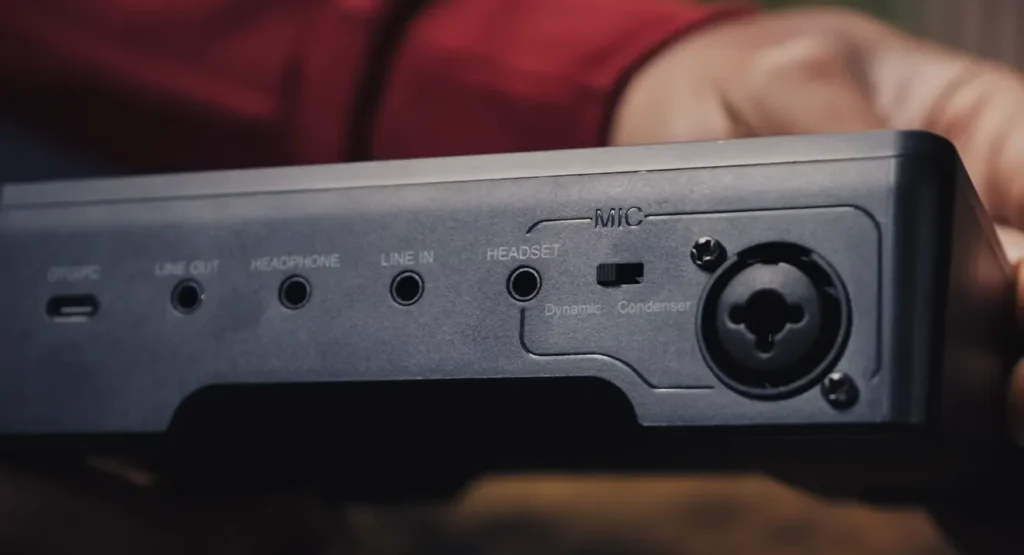
- XLR/TRS combo jack for microphones
- Headphone output (3.5mm)
- Headset input with microphone support
- Line input for phones, tablets, or additional audio sources
- Line output for external speakers
- USB-C connection with included USB-A adapter
Voice Effects: Six voice changers transform your voice in real-time: Male (deep), Female (higher pitch), Robot, Monster, Baby, and Elder. Some viewers share that the “female” voice sounds more like a chipmunk than a convincing woman, and “baby” lands closer to cartoon character territory. But imagine these voice effects make your audience laugh during your live stream. They’re ideal for fun and entertaining, right?
Autotune: Twelve autotune keys let you experiment with pitch correction across different musical scales. Like the six voice effects, it’s a fun addition for musical streams or comedic content. Hold the button for two seconds to disable.
Custom Sound Buttons: Four customized buttons each record up to 15 seconds of audio. Record your own clips, capture sound effects from your computer, or create custom alerts.

48V Phantom Power: The phantom power button supports condenser microphones without external power supplies, like the FIFINE A6V mic. There is also a switch between dynamic and condenser. So, your FIFINE AM8 mic also works with SC3.
Ease of Use
Score: 9/10
You’ll be glad for its plug-and-play operation. Once you connect the USB-C cable to your computer, the SC3 immediately appears as both an audio input and output device. No drivers, no software installation, no fussing with settings. This works on PC, Mac, PS4, and PS5.
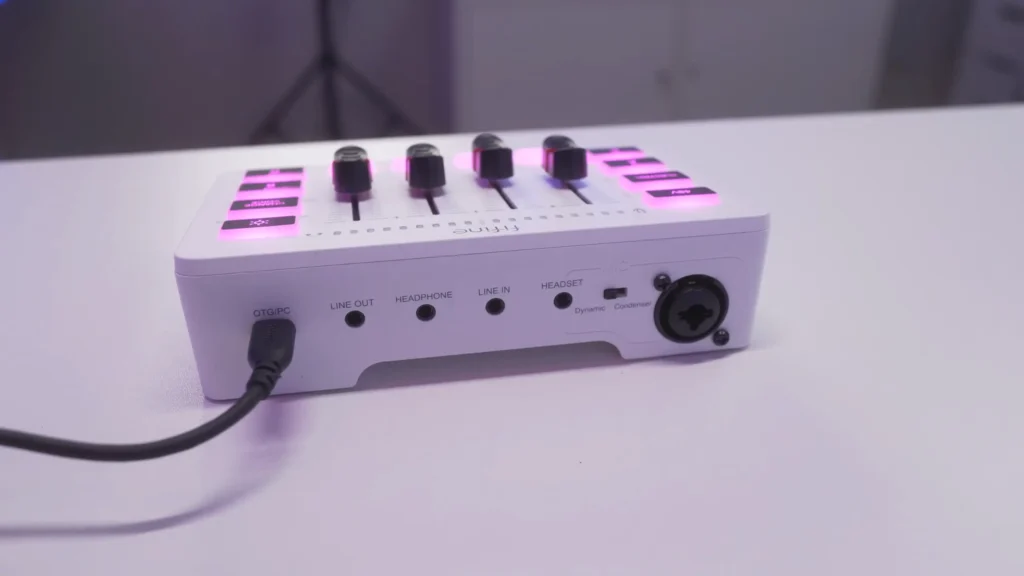
Remember to set the SC3 as your output device for your software or audio preference. Then, let the physical controls handle everything else: faders adjust levels, mute buttons silence channels, and monitoring toggles.
The learning curve is minimal:
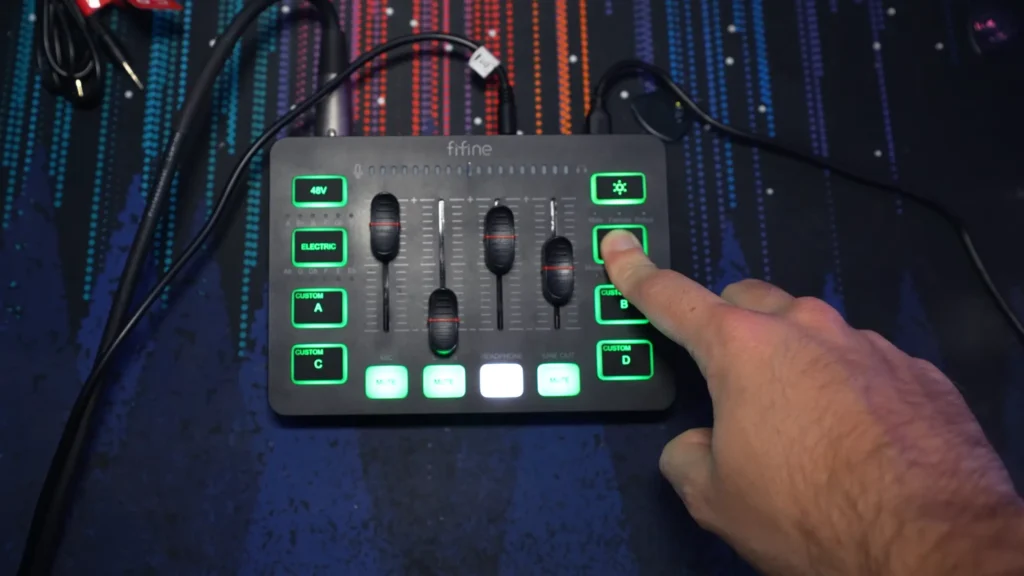
- Mic fader controls the microphone output level
- Line input fader adjusts connected device volume
- The headphone fader sets your monitoring level
- Line out fader controls external speaker volume
- The mute button instantly changes the channels’ status.
- Voice effects and autotune cycle through with single presses, disabled with a long press
Don’t need to watch multiple tutorials before usage, even if you’re a beginner. The SC3 removes intimidation from the equation. Just use it and learn it in action! Feeling a little hesitant? Just check out the FIFINE SC3 tutorials.
Design & RGB
Score: 8.5/10
Obsessed with the stylish RGB? FIFINE understood you. The SC3 looks the part of a gaming peripheral with its angular design and RGB lighting. Available in black or white, it fits various desk aesthetics.
The wedge profile isn’t just stylish—it’s functional. Angling the controls toward you makes operation more natural than flat interfaces. The compact footprint (approximately 8″ x 5″) leaves plenty of desk space for your keyboard and mouse.
RGB modes include:
- Color wave effect cycling across buttons
- Smooth color transitions
- Pulsing/breathing effect
- Step-by-step button cycling
- Static solid colors
If you’re going to stream with some personality on your screen, the SC3 adds visual interest without looking gaudy. It can also show you if the SC3 works: white indicates muted channels, and different colors help identify active effects.
FIFINE SC3 Review in Real-World Using
Where can you use the FIFINE SC3 audio mix, and does it work well? Here we’ve tested it in three scenarios that SC3 used most.
Scenario 1: Twitch Streaming (Single PC Setup)
Setup: SC3 connected to gaming PC, FIFINE AM8 via XLR, headphones in the headphone jack, game audio through PC.
During the streaming testing, we’re surprised to find that the SC3 handles streaming duties smoothly. All the game audio runs from your PC straight to your headphones. Your mic audio goes cleanly into OBS or whatever streaming software you’re using.
The best part is the real-time monitoring. You hear yourself instantly. No delay, no weird echo that makes you second-guess every word. Muting the mic during breaks is quick, too. One tap. The white light tells you right away if you’re muted.
The voice effects are not necessary, but fun. I tried the Monster and Elder voices, and yeah, people were locked in. Chat reacted, friends laughed, and the whole stream felt more alive.
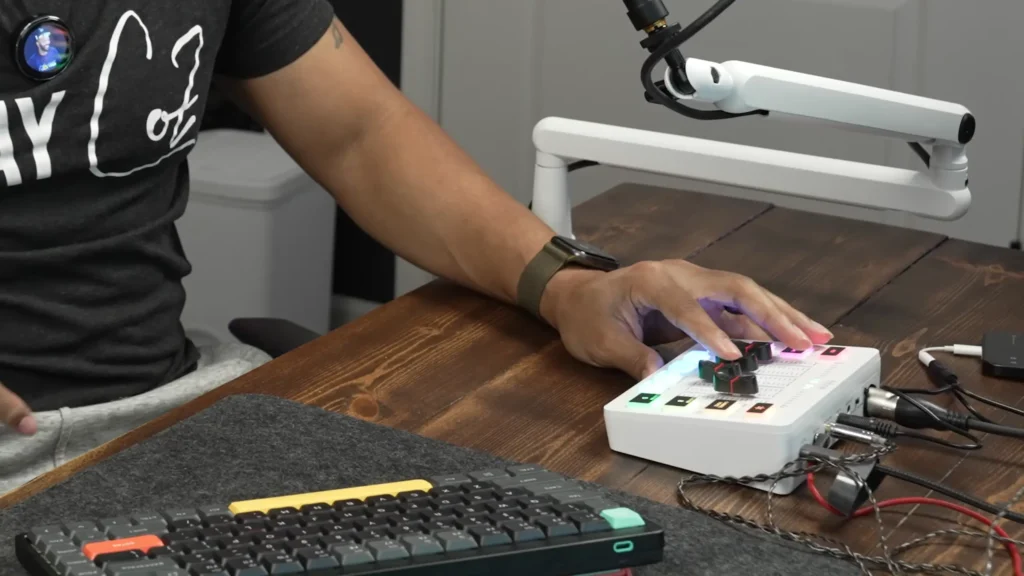
Scenario 2: Gaming with Voice Chat
Setup: SC3 connected to the PC, FIFINE H9 gaming headset plugged into the headset jack, Discord running for squad communication.
Playing Call of Duty: Warzone with my friends, I hit the Monster voice effect before joining proximity chat. It genuinely startled a player. What fun the SC3 brings us. Also, the customized voices are so convenient for gaming sessions. Just a simple tap, there’s more personality. Sure, Discord bots can do soundboards too, but having physical buttons I can hit instantly.
What the FIFINE SC3 works well is its physical control. Can’t tolerate your teammate’s constant yelling when they get excited? Just turn down the Headset level. Does somebody walk into your room asking about dinner plans? The mute button on your Mic will save you. The white LED lights also confirm the muting condition.
But there’s a pity: The SC3 can’t separate Discord audio from game audio. When my friend is talking over crucial audio cues in a horror game, I can’t just lower Discord independently. For casual gaming, this rarely matters, but competitive players who need precise audio balancing might find this limiting.
Who Is FIFINE SC3 For?
| User Type | Why |
| Beginning streamers | Everything you need to start without overwhelming complexity |
| Podcast beginners | Great choice for solo or two-person setups with phone call integration |
| Gamers want voice effects | Perfect for game chat entertainment and soundboard functionality |
| Content creators on a budget | Best value under $60 for feature-rich audio mixing |
Who isn’t SC3 for?
- Musicians needing basic integration with dedicated interfaces
- Professional streamers need higher-end options with channel separation
- Users needing Bluetooth
- Multi-PC setup users
Wrapping Up FIFINE SC3 Review
Looking through the whole FIFINE SC3 review, we can say that budget gear doesn’t mean settling for bare-bones functionality. At $50 (often less on sale), it delivers a feature set that directly competes with mixers costing $150+.
It’s not perfect. The plastic build and the voice effect could be better. It also misses individual channel separation for PC audio. But those complaints feel minor when considering the price-to-performance ratio.
Crafted for the beginner and those who need a budget-friendly one, this $50 mixer is a recommendation. Just look at its voice changers, autotune, custom soundboard buttons, RGB lighting, and solid audio quality. If you’re starting or want a capable secondary mixer with fun features, the FIFINE SC3 delivers where it counts.
FAQs
Does the FIFINE SC3 require driver installation?
No. The SC3 is true plug-and-play. Connect it via USB-C, and your computer recognizes it immediately as an audio device on Windows, Mac, PS4, and PS5.
Can I use condenser microphones with the SC3?
Yes. The SC3 includes 48V phantom power. Switch the rear toggle to “condenser” and enable the 48V button on the front panel.
Does the SC3 work with the FIFINE AM8?
Absolutely. The AM8 pairs naturally with the SC3 via XLR. Note that the SC3’s value lies in additional features rather than dramatic sound improvement, and it only works with the XLR microphone.
Can I save custom sounds permanently?
Surely. Once you have recorded, the voice effect will be saved. If you want to change, just record a new one. You can check how to use customized buttons in FIFINE SC3 here.
Does the SC3 have Bluetooth?
No. All audio connections require physical cables. Use the 3.5mm line input for phone or tablet audio.
Is the SC3 good for music production?
The SC3 is designed for streaming and gaming, not professional music production. For serious recording work, consider interfaces like the Focusrite Scarlett series with better preamps and lower latency.
How do I turn off the RGB lights?
Hold the RGB button for approximately two seconds to disable all lighting effects.
