Best Free Podcast Recording Software in 2026: 5 Picks for Podcasters

If you want to start your podcast but don’t want large expenses, free podcast recording software will be your right hand. Your podcast recording software shapes everything that comes after — easy editing process, audio sounds, and technical headaches.
For the best free podcast recording software, we tested dozens of recording tools and narrowed the field to five that deliver for new podcasters. Some are 100% free. Others offer generous free tiers or evaluation periods with full features. Let’s dive into it.
Quick View on The Best Free Podcast Recording Software
| Feature | Audacity | REAPER | GarageBand | Riverside | Zencastr |
| Price | Free | Free trial / $60 | Free | Free tier / $19–29/mo | Free tier / $20/mo |
| Platform | Win, Mac, Linux | Win, Mac, Linux | Mac/iOS only | Browser + mobile app | Browser-based |
| Built-in Editing | Yes | Yes (advanced) | Yes | Yes (transcript-based) | No |
| Multi-Mic Recording | Limited (stereo) | Yes (unlimited tracks) | Limited | Yes (up to 8 people) | Yes (separate tracks) |
| Local Recording | Yes (direct from mic) | Yes (direct from mic) | Yes (direct from mic) | Yes (per participant) | Yes (per participant) |
| Remote Guest Support | No | No | No | Yes | Yes |
| Video Recording | No | No | No | Up to 4K | Yes (with watermark on free) |
| AI Tools | No | No | No | Yes | Yes (paid) |
| Live Streaming | No | No | No | Yes (add-on) | No |
| Best For | Solo podcasters | Multi-mic setups | Mac beginners | Remote all-in-one | Free remote interviews |
For in-person recording, you can control the mic and the room with Audacity and REAPER. Riverside and Zencastr win for remote interviews where each participant records from a different location. GarageBand sits in between — a solid free option if you’re on a Mac and want something simple.
Detailed Review: 5 Free Podcast Recording Software
1. Audacity — Best Overall Free Option
Score: 9/10
Pros
- Completely free and open-source — no account, no trial, no catch
- Works on Windows, macOS, and Linux
- Fast to install and quick to load
- Built-in editing tools and effects for post-production
- Supports USB mics and XLR mics via audio interface
- Regular free updates
Cons
- No built-in multi-microphone support (limited to stereo via audio interface)
- Lacks some advanced features found in other free DAWs
- The interface looks dated compared to newer tools
- No mobile version
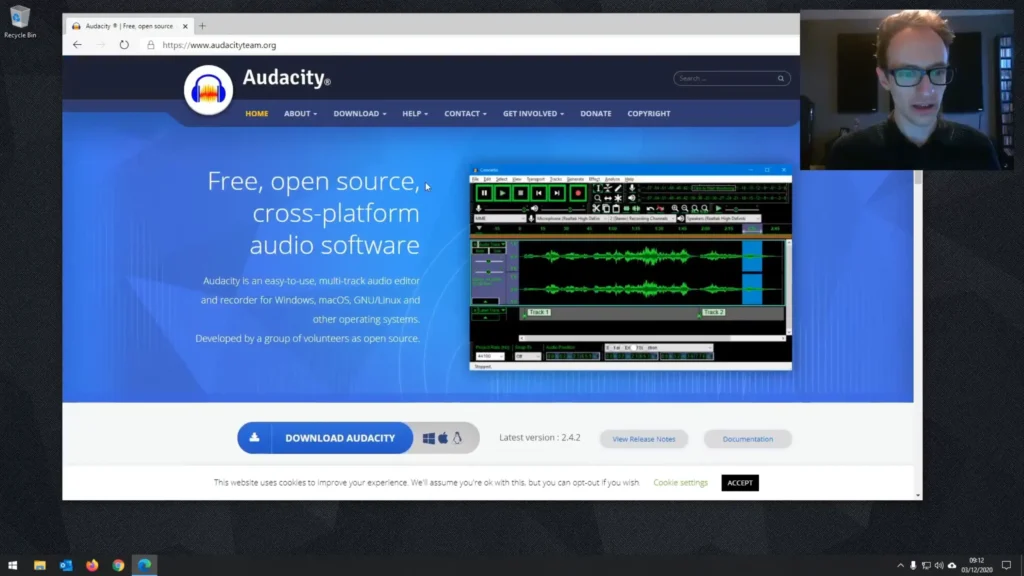
Audacity has been the go-to free recording tool for podcasters for over two decades. The biggest selling point is simplicity. Download it, open it, hit record. No sign-up flow, no subscription nag screens. For solo podcasters recording with a single USB microphone, it’s hard to beat.
The editing tools cover the essentials: cut, copy, paste, noise reduction, EQ, compression, and normalization. For most podcast workflows — record, clean up, export — Audacity has everything you need.
The Short: It lacks some of the professional features found in other digital audio workstations (even free software). Also, it doesn’t work well in multi-microphone recording. You can record two mics in stereo through an audio interface, but shows with three or four speakers will need something like REAPER.
Best for: Solo podcasters and beginners who want a simple, free, no-strings-attached recording and editing tool.
2. REAPER — Best for Multi-Mic Setups
Score: 8.5/10
Pros
- Professional editing tools and built-in effects (including de-noise)
- Records multiple microphones simultaneously with ease
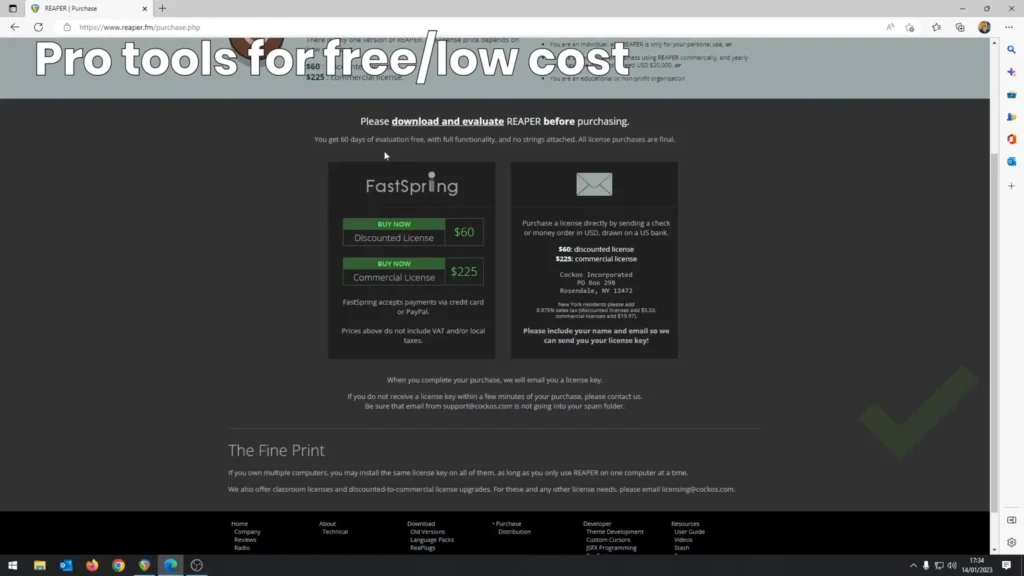
- 60-day free evaluation with full features
- Only $60 for a personal license (one-time, not recurring)
- Available on Windows, macOS, and Linux
Cons
- Steeper learning curve than simpler tools
- The interface can feel overwhelming for beginners
- Not ideal for someone who just needs to hit record and go
If your podcast involves multiple speakers recording in the same room, REAPER is the strongest free option here. It is a full-featured DAW that records each microphone to a separate track, letting you adjust levels, apply effects, and fix problems on one voice without touching the others.
The built-in plugin suite impresses at this price point. ReaFIR noise reduction, in particular, cleans up recordings made in less-than-ideal environments.
The trade-off is complexity. REAPER’s interface looks dense, and there’s a real learning curve. A solid strategy: start with Audacity, learn the basics, then graduate to REAPER when you want more control.
Best for: Podcasters with multi-mic setups who want professional editing power without a monthly subscription.
3. GarageBand — Best for Mac Users
Score: 8/10
Pros
- Free and pre-installed on most Apple devices (Mac, iPad, iPhone)
- Clean, beginner-friendly interface
- Includes editing and mixing tools
- Plenty of online tutorials and community resources
Cons
- Mac/iOS only — no Windows or Linux support
- Limited features compared to professional DAWs
- Geared more toward musicians than podcasters
- Can feel restrictive as your show grows
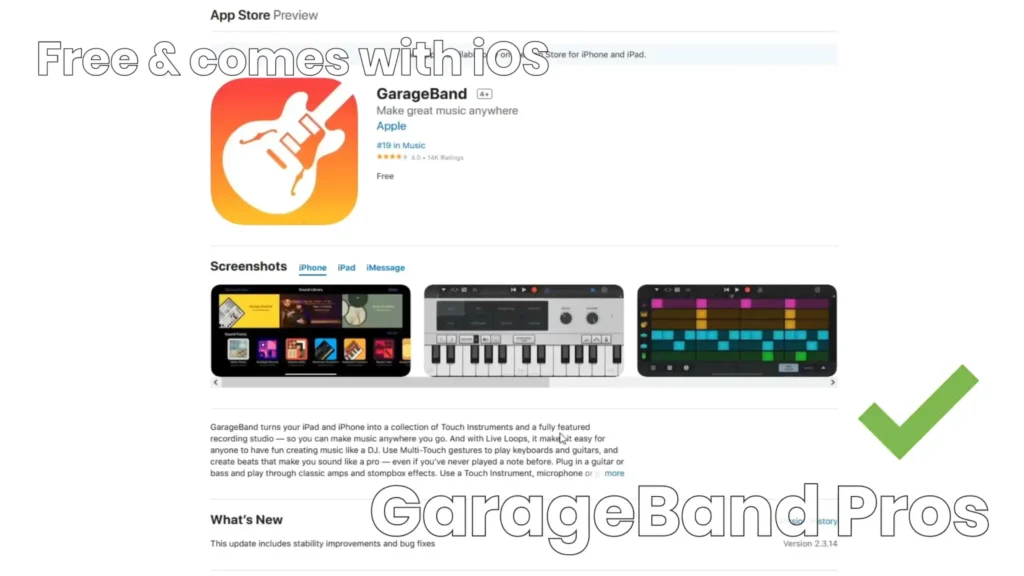
If you own a Mac, you probably already have GarageBand installed. Apple’s free music production app works well for podcast recording and basic editing. The interface is clean and intuitive, there’s a huge library of tutorials online, and the price is unbeatable: free 100%.
GarageBand is a simplified version of Apple’s Logic Pro. It’s built for music production, but podcasters can use it to record, edit, and mix episodes. The drag-and-drop interface makes arranging audio clips straightforward, and the built-in effects cover basic podcast post-production.
The limitations: If you use Windows, GarageBand will be limited. No transcript-based editing, no AI tools, no publishing pipeline.
Best for: Mac users who want a free, easy-to-use tool that’s already installed and ready to go.
4. Riverside — Best All-in-One for Remote Recording
Score: 8.5/10
Pros
- Local recording eliminates internet-related audio quality issues
- Records up to 4K video
- Transcript-based editing (highlight text to delete audio)
- AI tools for show notes, clips, and filler word removal
- Direct publishing to Spotify for Creators and YouTube
- Built-in live streaming to YouTube, LinkedIn, and Facebook
- Up to 8 participants per session
Cons
- The free plan is very limited (designed for testing, not regular production)
- Editing tools lack the precision of desktop DAWs like REAPER or Descript
- Requires internet connection (no offline recording)
- Live streaming is an add-on ($15/month extra)
Riverside has evolved from a remote recording tool into a genuine all-in-one podcast platform. Its standout feature is local recording. Unlike Zoom, Riverside captures audio and video directly on each participant’s computer. After the session, those files are uploaded to the cloud. The result: clean audio even when someone’s Wi-Fi is struggling.
The transcript-based editor is another highlight. Instead of scrubbing through a waveform, you read a transcript and highlight what you want to cut. Riverside removes it from both audio and video.
The AI co-creator tools generate show notes, find highlight clips for social media, and auto-remove filler words. When your episode is ready, publish directly to Spotify for Creators and YouTube — no downloading, no re-uploading.
The catch: the free plan exists primarily to let you test the platform. For regular production, you’ll need the Standard ($19/month) or Pro plan ($29/month). And if you want granular editing control, Riverside’s editor may feel limiting compared to a desktop DAW.
Best for: Interview-style podcasters who want high-quality remote recording with built-in editing and one-click publishing.
5. Zencastr — Best Free Browser-Based Recorder
Score: 7.5/10
Pros
- Records audio locally on each participant’s device for higher quality
- Browser-based — nothing to install for you or your guests
- Separate audio tracks per speaker
- Unlimited free audio recording
- Free video recording (with watermark)
Cons
- No built-in editing or mixing tools
- Free plan limits downloads to MP3 (no lossless WAV)
- Video recording has a watermark on the free tier
- Recording length may be limited on free plans
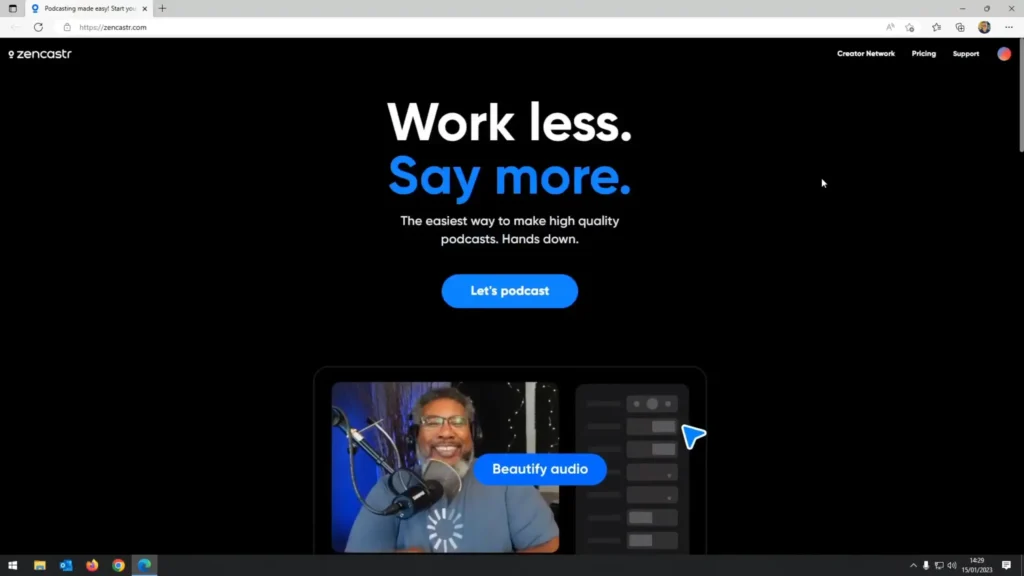
Zencastr pioneered browser-based, locally recorded podcast interviews. It solves one specific problem really well: recording remote interviews with clean, separated audio. Your guest clicks a link, joins in their browser, and Zencastr records their audio locally. No app downloads, no account creation for guests.
Separate-track recording is the key advantage over Zoom. Each speaker’s audio lives on its own track, so you can edit one person’s audio without affecting the other. Background noise, coughs, interruptions — all isolated.
The trade-off: Zencastr is a recording tool, not an editor. You’ll need a separate app for post-production. The free plan also limits exports to MP3, so uncompressed WAV files require a paid tier.
Best for: Podcasters who record remote interviews and want clean, separated audio tracks without paying a subscription.
Easy Steps Guide: How to Start Podcast Recording
Step 1: Pick Your Recording Setup
Before you choose software, figure out how you’ll record. Are you solo podcast, co-hosts recording, or interviewing guests remotely over the internet? Solo and in-person setups point toward DAWs like Audacity, REAPER, or GarageBand. Remote interviews call for Riverside or Zencastr.
Step 2: Choose Your Microphone
Your mic matters more than your software. A decent USB microphone (like the FIFINE K669 or AM8) plugs directly into your computer and works with every tool on this list. If you’re running multiple mics, you’ll need an audio interface and XLR microphones — and software like REAPER that supports multi-track input.
Step 3: Set Up Your Software
Download or open your chosen tool and configure your audio input. Select your microphone from the settings menu, set your recording format (WAV for highest quality, MP3 if storage is tight), and do a quick test recording. Play it back. Listen for background noise, distortion or low volume.
Step 4: Record Your Episode
Hit record and focus on your content. A practical tip that saves hours of editing later: treat your recording session like a live show. If you stumble on a word, keep going instead of stopping and restarting. Minor mistakes are easy to trim. Constant stop-and-start creates a fragmented recording that takes much longer to piece together.
Step 5: Edit and Export
Trim the beginning and end, cut any long pauses or major mistakes, apply noise reduction if needed, and normalize your audio levels. If your software supports it, export at 128kbps MP3 for standard podcast distribution or WAV if you’re archiving masters. Then upload to your hosting platform and publish.
Final Verdict
After our testing and comparison, Audacity is the best free podcast recording software for most people. It’s genuinely free, runs on every major OS, and gives you recording plus editing in one package. That said, different setups call for different tools:
- Multiple mics in the same room? REAPER gives you multi-track recording and pro editing for free (or $60 one-time).
- Mac user who wants zero friction? GarageBand is already installed.
- Remote interviews with all-in-one editing? Riverside handles recording, editing, and publishing in one place.
- Free remote recording with separate tracks? Zencastr captures clean audio per speaker with nothing to install.
Start with the tool that matches your needs now. You can always upgrade later.
FAQs
What is the best completely free podcast recording software?
Audacity. It’s 100% free, open-source, and includes recording and editing tools. No trial, no account, no paywalled features.
Can I record a podcast with Zoom?
Yes. Zoom records separate audio files per speaker, which beats Google Meet or Microsoft Teams. The free plan caps recordings at 40 minutes, and there are no editing tools built in.
What’s the difference between local recording and cloud recording?
Local recording captures audio directly on each participant’s device, then uploads afterward. Cloud recording captures whatever comes through the internet connection in real time. Local recording produces higher-quality results because it isn’t affected by bandwidth issues or network glitches.
Is REAPER really free?
REAPER offers a 60-day evaluation with every feature unlocked. After that, the software keeps working with a reminder to purchase. At $60 for a personal license (one-time, covers through version 8.99), it’s one of the best values in audio software.
What’s the best free podcast recording software for beginners?
For solo recording: Audacity (any platform) or GarageBand (Mac). For remote interviews: Zencastr. All three get you recording within minutes.
